When a phone won't download apps, the reason depends heavily on which platform you use. On Android, Google Play Store downloads usually stall because storage is full, the download queue is stuck, or the app download preference only allows Wi-Fi. On iPhone, App Store downloads more often fail because of a payment method problem or a download that simply froze. So the quickest route is to identify your symptom first and jump to the matching section, instead of working through every fix blindly.
Before anything technical, spend about a minute on the basics: confirm your connection is strong (Wi-Fi is preferred), check how much free storage you have, and restart the phone. These quick checks resolve a surprising share of stuck downloads. If the problem survives them, move on to the Android or iPhone section below.
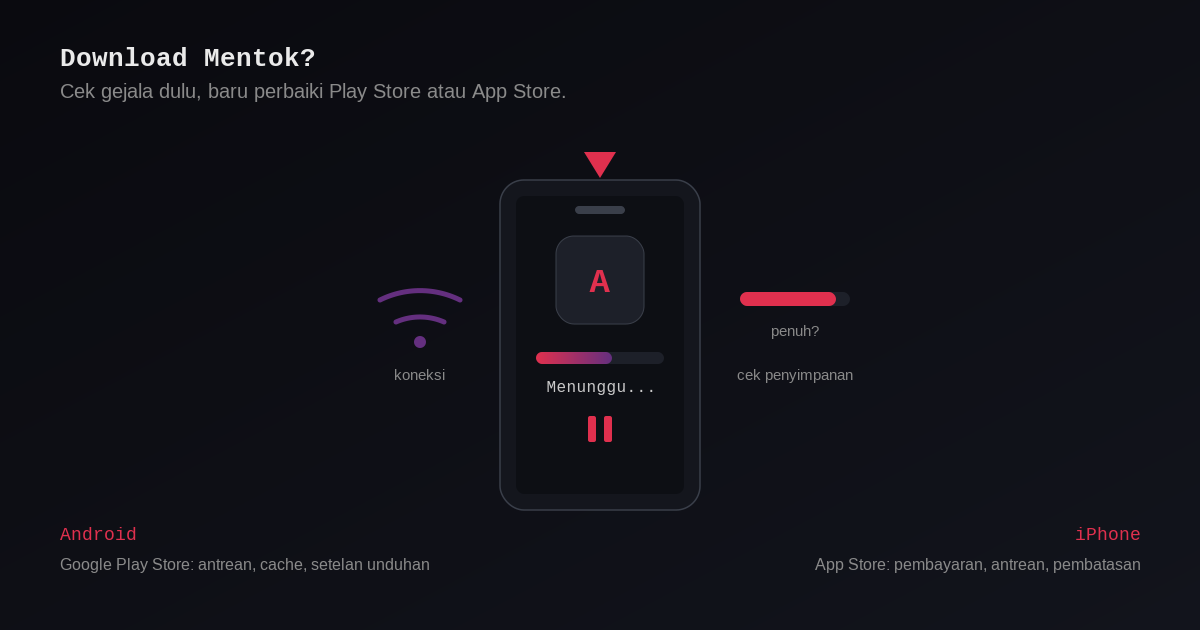
Match the Symptom to the Cause First
Look closely at what your screen is telling you. Each symptom points toward a likely cause, which saves you from trying fixes that have nothing to do with the real problem.
- Download stuck on Waiting or Pending: the queue is usually jammed, another app update is running, or on Android the download preference is limited to Wi-Fi.
- Download stops partway through: low storage or a dropped connection is the most common culprit.
- Play Store or App Store won't open: close the store app, restart the phone, and look for a system update.
- Verification Required appears on iPhone: your Apple Account has a payment method issue or an unpaid balance.
- App shows as incompatible or not available: the limitation comes from your device, system version, or account region, not from your network or storage.
The One-Minute Checks That Fix Most Cases
These apply to both Android and iPhone. Google's own support page lists them as the starting point whenever a download or update never finishes.
- Connection: use a strong mobile data or Wi-Fi signal, ideally Wi-Fi. Open a website to confirm the internet actually works, or toggle airplane mode on and off.
- Storage: on Android, go to Settings > Storage. Google states that if available space is under 1 GB, apps will stop downloading and installing. Clear out large videos, old downloads, or apps you no longer use.
- Restart: a simple reboot closes frozen processes and often gets the queue moving again.
- Date and time: on Android, open Settings > System > Date & time and turn on automatic date and time. An incorrect clock can break the connection to the store servers. iPhone has a similar option under General settings.
If temporary files keep eating your space, our guide on how to clear cache on your phone shows how to free storage without losing important data.
Fixing Google Play Store on Android
If the basic checks didn't solve it and the Play Store still won't download apps, work through these steps in order. Menu labels vary a little between phone brands, but the flow is the same.
- Close and reopen the Play Store: swipe it away from your recent apps, open it again, and retry the download.
- Check the app download preference: in the Play Store, tap your profile icon > Settings > Network preferences > App download preference, then choose Over any network. A Wi-Fi only setting will hold downloads whenever you are on mobile data.
- Clear the Play Store cache: go to Settings > Apps > Google Play Store > Storage > Clear cache. This is safe and leaves your account and apps untouched.
- Clear Play Store data only if needed: if clearing the cache changed nothing, tap Clear storage or Clear data in the same screen. Play Store settings return to default, so review your account and preferences afterward.
- Update the Play Store and Android: in the Play Store, tap your profile icon > Settings > About > Update Play Store. For the system, go to Settings > System > Software update > System update.
- Remove and re-add your Google account as a later step: only try this after everything else fails, and make sure you know the account password before removing it.
Some phones feel sluggish for a while after a big system update. If that happens to you, see our guide on how to fix a slow phone after an update.
Fixing the App Store on iPhone
On iPhone and iPad, download trouble tends to involve your account rather than the device itself. Apple notes that you might need a valid payment method on file even when the app is free.
- Prioritize the stuck download: touch and hold the app icon on the Home Screen and choose Prioritize Download. The same menu also lets you pause and then resume the download.
- Check your payment method and balance: open Settings, tap your name, and review the payment section. An expired card or an unpaid balance triggers the Verification Required message, and downloads stay blocked until it is resolved.
- Check Screen Time restrictions: go to Settings > Screen Time > Content & Privacy Restrictions and make sure Installing Apps is set to Allow. This matters if the App Store icon is missing or installs are blocked.
- Restart the iPhone: turn it off, turn it back on, and try the download again.
- Update iOS: go to Settings > General > Software Update and install anything that is available.
Also keep in mind that in some countries or regions, you may need to confirm you are an adult before certain apps can be downloaded. If you see that prompt, complete the confirmation and try again.
Which Method to Use When
- Play Store download waits while you are on mobile data: check the app download preference first.
- Android download stops midway or fails to install: free up storage, then clear the Play Store cache.
- Play Store crashes or keeps showing errors: clear the cache, then clear data if it persists.
- Verification Required on iPhone: fix the payment method or settle the unpaid balance.
- Greyed out iPhone icon stuck on Waiting: use Prioritize Download, or pause and resume.
- App Store missing from the Home Screen: review Screen Time restrictions.
Still Can't Download?
If none of the steps above worked, resist the urge to wipe your phone right away. Gather a little more information first so the next move is the right one.
- Write down any error message: if the store shows a specific error code or message, note it exactly and look it up on the official Google Play or Apple help pages.
- Check official system status: sometimes the store service itself is having trouble. Look at the official status page before changing settings.
- Try a different network: switch from home Wi-Fi to mobile data or the other way around to rule out a network that blocks downloads.
- Factory reset only as a last resort: it erases everything on the phone, so make a full backup before you even consider it.
- Visit a service center: if you suspect a hardware fault, failing storage, or a locked account, get help from an authorized service center, or contact Apple Support for iPhone.
Conclusion
Fixing a phone that can't download apps starts with reading the symptom correctly. On Android, focus on storage, the download queue, and the Play Store download preference. On iPhone, look at your payment method and any frozen download. Run the one-minute checks first, and only dig deeper when they don't solve it.
Sources
Want to get more done with a little help from AI? Try the free AI tools available on Farisium.
Explore Farisium AI Tools