Short answer first: clearing cache on your phone is safe. Cache is made of temporary files, so wiping it will not sign you out of your accounts or remove your photos, messages, or personal files. The button you need to be careful with is a different one that often sits right next to it, called Clear storage or Clear data. That option deletes the app's data entirely and logs you out.
On Android, the quickest fix is to go to Settings, Apps, tap the app, then Storage, and choose Clear cache. iPhone works differently. There is no per-app clear cache button because iOS handles cached files on its own, so your tools are Offload App and whatever storage cleanup the app itself offers. The rest of this guide walks through every method, explains what each one actually removes, and covers what to do when things do not go as planned.
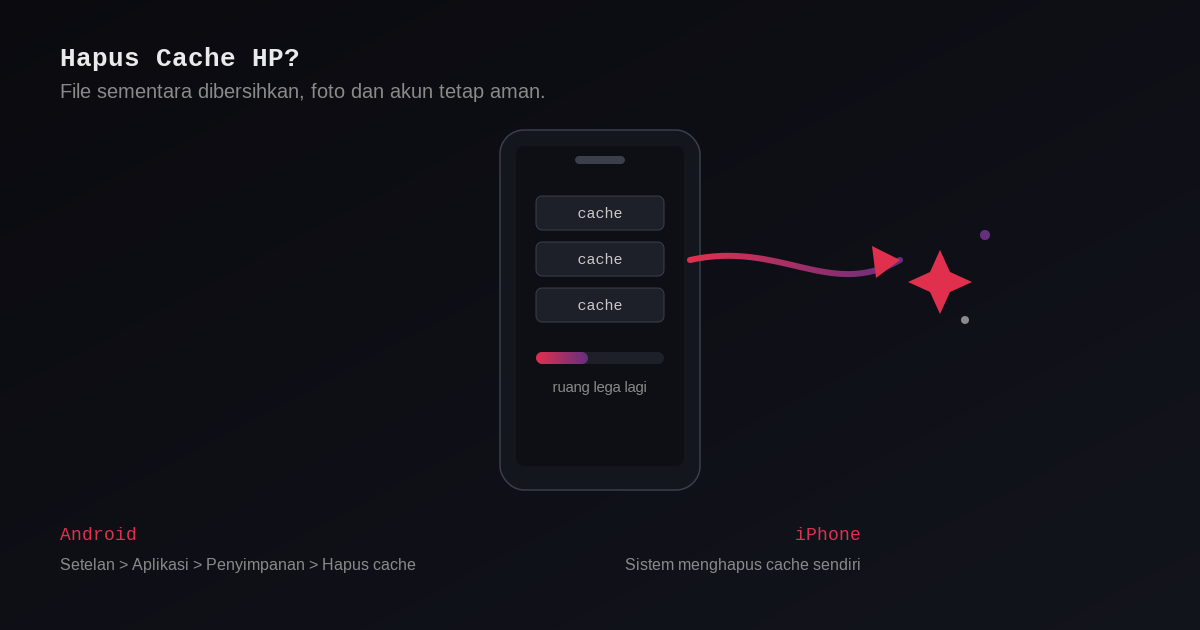
What Cache Is and Why It Builds Up
Think of cache as an app's short-term memory. To avoid downloading the same images, page elements, and layout data every time you open it, an app keeps copies on your phone. That way it can pull them from local storage instead of fetching everything again over the network.
The downside is that this pile keeps growing the more you use your phone. Browsers, social apps, and streaming services tend to collect the most. Because cache is rebuilt automatically whenever an app needs it, removing it does not break anything. You are simply reclaiming space that temporary files were occupying.
Is Clearing Cache Safe?
Yes. The official Google guide to freeing up storage on Android describes Clear cache as deleting temporary data. It also notes that some apps may be slow the next time you open them, since they need to rebuild that data. After that first launch, things go back to normal.
Here is what to expect:
- Removed: temporary files such as stored images, cached page content, and interface data.
- Kept: your logins, gallery photos and videos, chats, documents, and app settings.
- Side effect: an app may take a little longer to load the first time you open it afterward.
How to Clear App Cache on Android
Android lets you clear cache one app at a time. Menu labels vary slightly between manufacturers, but the path usually looks like this:
- Open Settings.
- Tap Apps and find the app you want to clean up.
- Tap the app name, then open Storage or Storage & cache.
- Tap Clear cache. Leave Clear storage and Clear data alone.
- Repeat for any other app that is taking up a lot of room.
Not sure where to start? Head to Settings, then Storage. This screen sorts apps by size, so the heaviest ones appear first and you can target the biggest cache instead of guessing. The same screen also has a Free up space option that suggests what the system thinks you can safely remove.
How to Clear Chrome Cache on a Phone
Your browser is often the single largest source of cache. In Chrome on a phone, do this:
- Open Chrome and tap the three-dot menu.
- Select Delete browsing data.
- Check the Cached images and files box.
- Uncheck anything else you want to keep.
- Tap Delete data.
The checkboxes are not interchangeable. Cached images and files are just temporary copies of sites you have visited, so removing them is harmless. Browsing history erases the list of pages you have opened, and Cookies and site data will sign you out of most websites. If cache is your only goal, keep just the cached images and files box ticked.
How to Clean Junk Files with Files by Google
Files by Google is Google's own file manager, built to help you manage files and clear out junk. Many Android phones ship with it, and it is available on the Play Store if yours does not.
Open the app and go to the Clean tab. You will usually see a Junk files card listing temporary files that can go. Tap it and look through the list before you confirm. That quick review matters because the same tab also surfaces other suggestions, like duplicate or large files, that you may still want.
How to Clear Cache on iPhone
If you have been hunting for a clear cache button on your iPhone, you will not find one. According to Apple's guide to checking iPhone and iPad storage, when storage runs low the device frees up space by removing things you can download again or no longer need, including unused apps and temporary files. Apple adds that cached and temporary data might not count as usage, and that the device removes these files itself, so you do not have to.
When a single app is hogging space, Offload App is the closest equivalent:
- Go to Settings, General, then iPhone Storage.
- Tap the app to open its detailed view.
- Choose Offload App to free the storage the app uses while keeping its documents and data.
- Pick Delete App only if you want to remove the app along with its related data.
For Safari, go to Settings, Safari, then Clear History and Website Data. Keep in mind this also wipes your browsing history. Beyond that, check inside individual apps, since some include their own storage management for downloads or saved media. That is often the most precise way to trim space on an iPhone.
Clear Cache vs Clear Data
These two buttons live side by side, but they do very different things:
- Clear cache: removes temporary files only. Your account, settings, and files stay put.
- Clear storage or Clear data: permanently deletes all of the app's data. The app resets to a freshly installed state and you are signed out.
- Google's advice: before using Clear storage, try deleting data from within the app first.
Which Method to Use, Plus Troubleshooting
Match the fix to the problem:
- An app misbehaves after an update: clear that app's cache first. If the whole phone still feels sluggish, see our guide on how to fix a slow phone after an update.
- Storage is almost full: open Settings, Storage, Free up space, and consider turning on Smart Storage, which automatically clears backed-up photos and videos when storage is nearly full.
- Cache fills up again quickly: that is normal, since apps rebuild cache as you use them. Focus on the largest apps and manage downloads inside those apps.
- On iPhone: let the system do its job and offload large apps you rarely open.
Once you are done, restart your phone as a sensible final step. There is also an advanced option called wipe cache partition, found in recovery mode. It varies by brand and is not available on every phone, so only try it if you are comfortable navigating recovery menus. Finally, skip third-party cleaner apps that run in the background and ask for broad permissions. The built-in tools already handle this job.
Conclusion
Clearing cache is a safe, low-risk way to reclaim space and sort out misbehaving apps. On Android, use per-app Clear cache, tidy up Chrome, and lean on Files by Google. On iPhone, trust the system and offload apps when needed. Above all, keep Clear cache and Clear data apart in your head so you never wipe app data by accident.
Sources
Want to get everyday tasks done faster? Try the free AI tools available on Farisium.
Explore Farisium AI Tools