If your phone keeps restarting on its own, the cause may not be a fault at all. Many modern phones include a built-in auto restart feature that reboots the device on a schedule or under certain conditions. So the first and fastest fix is simple: open your settings and check whether auto restart or scheduled restart is turned on. If the reboots line up with that schedule, your phone is doing exactly what it was told to do.
If no such feature is active, restart the phone yourself once and watch whether the random reboots come back. Still happening? Work through the steps below in order, starting with the safest and ending with the most drastic. Hold off on a factory reset until everything else has failed, since it wipes your data.
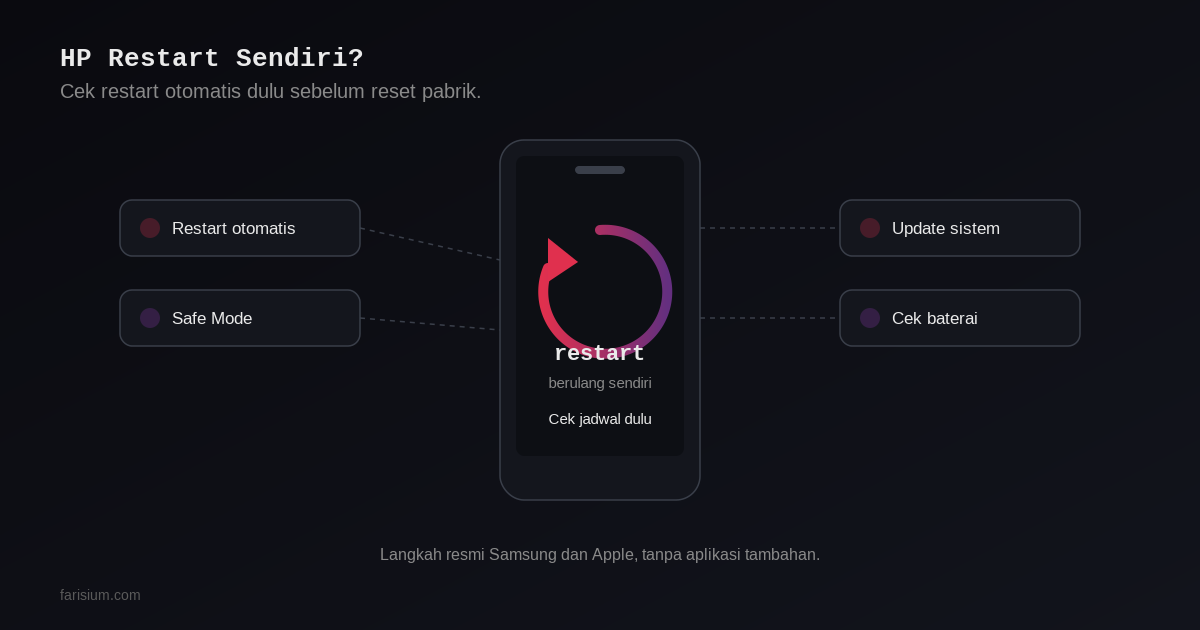
Start Here: Check Auto Restart Settings
Samsung's official support page explains that Galaxy phones can reboot by themselves for a few legitimate reasons. Auto restart can run on a schedule you choose, or when memory usage is high. It only kicks in while the screen is off and the battery is at 30 percent or more, which is why it usually happens overnight or while the phone sits idle.
Newer versions of One UI also add Inactivity restart, a security feature that reboots a locked phone that has not been used for 72 hours. On top of that, emergency security updates can trigger a restart even if you have turned off automatic downloads. None of these mean your phone is broken.
To switch off scheduled reboots on a Samsung phone, go to Settings > Device care > Auto optimization > Auto restart. According to Samsung, if restarts continue after you disable it, a third-party app may be responsible, and you can remove suspicious apps through Settings > Apps.
Other Android brands often have a similar option under a different name, such as scheduled power on and off. Typing restart or schedule into the search bar in Settings is the quickest way to find it.
Why Phones Restart Unexpectedly
When a scheduled feature is not the explanation, the usual suspects are:
- A system bug, either from a fresh update or from running outdated software.
- A misbehaving app that crashes and destabilizes the system.
- Storage that is nearly full, leaving the system no room to work.
- A worn-out battery that can no longer deliver steady power.
- Overheating, which makes the phone shut down to protect itself.
- A damaged or poorly seated SIM card or microSD card.
- A hardware fault, often after a drop or water exposure.
Fixes to Try, From Safest to Most Drastic
Restart Once Manually
A normal restart clears stuck background processes. Afterward, use the phone as usual and note whether the unexpected reboots return.
Update the System and Your Apps
System updates frequently include bug fixes for stability problems, so install any pending update and refresh your apps from the Play Store. If the trouble started right after an update, our guide on how to fix a slow phone after an update covers related steps.
Free Up Storage
Delete files you no longer need, clear the cache of large apps, and move photos and videos to cloud storage. The system needs breathing room to run smoothly.
Test in Safe Mode
Android's Safe Mode loads only the preinstalled apps. The method varies by brand, but on many phones you long-press the Power off option in the power menu. If the phone stays stable in Safe Mode, a third-party app is the likely culprit.
Uninstall Suspect Apps
Begin with whatever you installed just before the problem appeared. Remove apps one at a time and check the phone's behavior after each removal so you can identify the troublemaker.
Take Out the SIM and microSD Card
Power the phone off, remove the SIM card and any microSD card, then turn it back on. If the reboots stop, one of the cards may be faulty and need replacing.
Force Restart With the Hardware Buttons
If the phone freezes or stops responding, force a restart using the physical buttons. The combination differs between manufacturers, but holding the power button together with volume down until the screen goes dark and comes back is common on Android.
Factory Reset, Only as a Last Resort
A factory reset erases everything on the device. Try it only after every other step has failed, and back up your photos, contacts, and chats first. If something important slips through, see our guide on how to recover deleted photos on a phone.
What to Do If Your iPhone Keeps Restarting
Apple's official steps for a normal restart: hold a volume button and the side button until the power-off slider appears, drag the slider, wait 30 seconds, then hold the side button until the Apple logo shows up.
If the iPhone is frozen or unresponsive, Apple recommends a force restart. On recent models, press and release volume up, press and release volume down, then hold the side button until the Apple logo appears.
- Update iOS from Settings > General > Software Update.
- Check Battery Health under Settings > Battery. A degraded battery can cause unexpected shutdowns and reboots.
- As the final software step, connect the iPhone to a computer, enter recovery mode, and choose Update rather than Restore so the system is reinstalled without erasing your data.
Which Fix Matches Your Symptom?
- Reboots at the same time or while the phone is idle: check auto restart settings.
- Reboots began after installing a new app: test in Safe Mode, then uninstall that app.
- Reboots began after a system update: look for a follow-up update and update all apps.
- Phone runs hot or drains quickly: check battery health and reduce heavy app use.
- Phone is completely frozen: force restart.
- Nothing else worked: back up your data, then consider a factory reset.
Still Restarting? Time for a Service Center
Take the phone to an authorized service center if it is stuck in a boot loop with the logo appearing again and again, keeps restarting after a factory reset, has been dropped or exposed to water, gets very hot regularly, or shows signs of a swollen battery such as a lifted back panel or a screen being pushed outward. Do not open the phone yourself, especially when the battery looks swollen, since that is a safety risk. If charging is also acting up, our guide on how to fix a phone that is not charging can help narrow down the cause.
Conclusion
A phone that keeps restarting is often just following its own schedule, so check auto restart settings before anything else. From there, restart once, update, free up storage, test in Safe Mode, and check your cards. Keep the factory reset for last, and hand the phone to an authorized service center if the signs point to hardware.
Sources
Want quicker answers to everyday tech problems? Try the free AI tools on Farisium.
Explore Farisium AI Tools