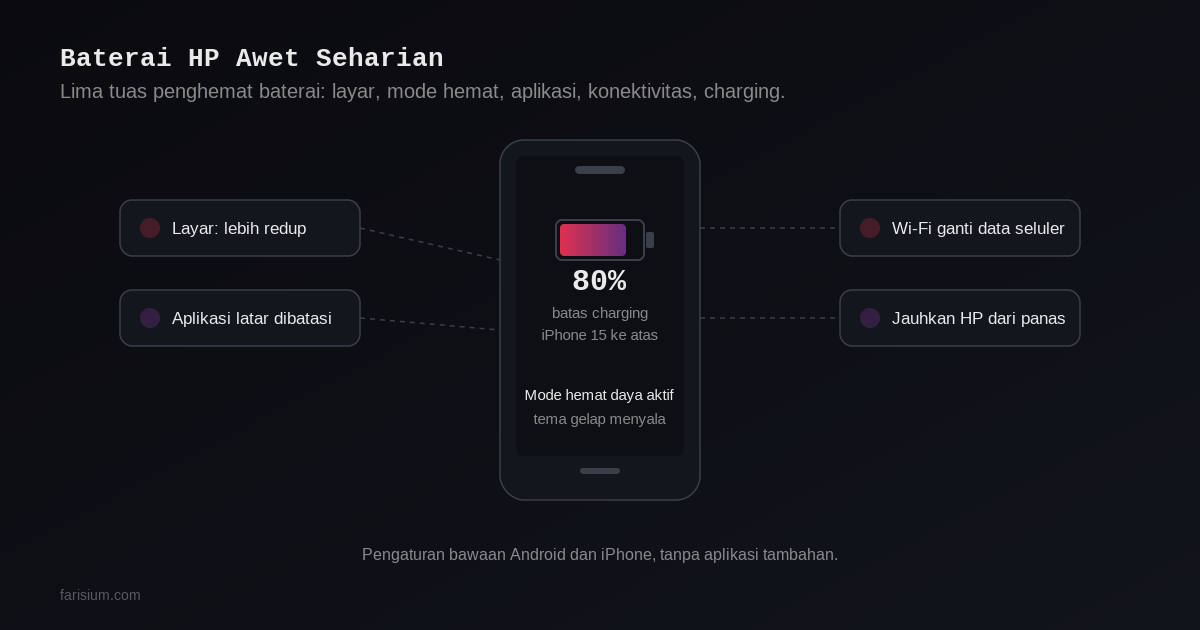
The fastest way to make your phone battery last longer is to change a few settings that affect it every minute you use the phone: lower your screen brightness, make the screen turn off sooner, turn on battery saver mode (Battery Saver on Android, Low Power Mode on iPhone), and limit apps that keep running in the background. These are the biggest wins, they take only a few minutes to set up, and you can undo any of them at any time.
This 2026 guide covers both Android and iPhone, using the official settings from Google and Apple for each. Keep one principle in mind as you read: settings help you save battery during the day, while charging habits and avoiding heat protect your battery health over the long term. You need both if you want a phone that lasts through the day now and still holds a good charge years from now.
Why your phone battery drains so fast
Most battery drain comes from a handful of everyday habits rather than from a single faulty part. The screen, the radios that keep you connected, and apps that keep working after you close them all draw power, even when the phone sits in your pocket.
Battery life also tends to drop as a battery ages. According to Apple, a lithium-ion battery loses some of the charge it can hold as it chemically ages, and that aging is shaped by factors like temperature history and charging patterns. So a phone that once lasted all day may need a little more care as it gets older.
These are the common causes worth checking first:
- A bright screen that stays on longer than it needs to.
- Apps running in the background, refreshing and syncing when you are not using them.
- A weak mobile signal, which makes the phone keep searching for a better connection.
- GPS, Location, and Bluetooth left on all day even when nothing is using them.
- Heavy use such as graphics-heavy games, video streaming, long navigation sessions, and lots of camera use.
- Heat, since Google notes the battery drains much faster when it is hot, even when the phone is not in use.
If your battery started draining faster right after a system update, give the phone some time before you assume something is wrong. A phone that feels sluggish after an update can also use more battery while the system settles, and our guide on how to fix a slow phone after an update walks you through what to check.
Quick wins that make the biggest difference
If you only have a couple of minutes, start here. These changes appear in the official battery guidance and work on most Android phones and iPhones, although the exact menu names can vary by brand and software version.
- Lower your screen brightness and turn on automatic (adaptive) brightness so the phone adjusts to your surroundings.
- Shorten the screen timeout so the display turns off sooner when you put the phone down.
- Turn on Battery Saver on Android or Low Power Mode on iPhone when you know you have a long day ahead.
- Switch on dark theme, which Google lists among the settings that use less battery.
- Turn off Bluetooth and Location when you are not using them.
- Use Wi-Fi instead of mobile data whenever a reliable Wi-Fi network is available.
Android: battery saving settings
Google keeps a clear list of the settings that use less battery in its Google official guide to Android battery life ↗. Besides brightness, screen timeout, and dark theme, it also suggests turning off keyboard sounds and vibrations. Note that some of these steps only work on Android 13 and up, and phone makers may place them in slightly different menus.
One setting worth turning on is Adaptive Battery. It lets the phone manage how apps use power based on how you actually use them, so apps you rarely open do not quietly drain your battery in the background.
To turn on Battery Saver, follow these steps:
- Open Settings.
- Tap Battery.
- Tap Battery Saver and turn it on.
- Keep the trade-off in mind: Battery Saver turns on dark theme and limits or turns off background activity, so some visual effects, certain features, network connections, and apps may be delayed while it is on.
Next, look at which apps use the most battery and restrict the ones with high battery use that you do not need running all the time. Google also recommends deleting accounts you no longer use, since every signed-in account can keep syncing in the background.
iPhone: battery saving settings
On iPhone, the daily savers and the long-term battery protection features both live in the Battery section of Settings. For the charging side, Apple explains the details in its Apple official guide to iPhone charge limit ↗.
The quickest daily saver is Low Power Mode. Open Settings, tap Battery, and turn on Low Power Mode when your battery is getting low or when you know you will be away from a charger for a while.
If you have an iPhone 15 model or later, you can set a charge limit. Open Settings, tap Battery, tap Charging, and choose a limit between 80 percent and 100 percent in 5 percent steps. When the limit is set to 100 percent, Optimized Battery Charging is available. With a limit below 100 percent, your iPhone will still occasionally charge to 100 percent to keep its battery estimates accurate, and iOS may suggest a limit (for example 95 percent) based on your charging habits.
On iPhone 14 models and earlier, open Settings, tap Battery, tap Battery Health and Charging, and make sure Optimized Battery Charging is on. It is on by default when you set up your iPhone. The feature reduces the time your iPhone spends fully charged by delaying charging past 80 percent when it predicts you will stay plugged in for a long time, and it still aims to have the phone full when you unplug it.
Be patient after setting up a new iPhone. Optimized Battery Charging needs at least 14 days to learn your routine, and your iPhone must go through at least 9 charges of 5 hours or more in one location before it engages. Apple warns that turning charging optimizations off can increase wear on the battery and reduce its lifespan, so it is best to leave it on.
Charging habits that protect your battery
Settings help you get through today, but how you charge decides how well your battery holds up over the years. Apple links battery lifespan to chemical age, which is affected by both temperature and charging patterns, so small habits really add up.
Follow these habits based on Google and Apple guidance:
- Use the power adapter that came with your phone. Google warns that other adapters and chargers may charge slowly or not at all, and can damage the phone or battery.
- Keep your phone cool and avoid situations where it can overheat, especially when the battery is fully charged.
- Do not drain the battery to zero on purpose. You do not need to teach the phone its battery capacity with full-to-empty cycles.
- Occasionally let the battery drop below 10 percent and then charge it fully overnight, as Google recommends.
- Do not leave your phone charging in a hot car or in direct sunlight.
Heat deserves special attention. Google notes that a hot battery drains much faster even when the phone is idle, and that this kind of drain can damage the battery.
What you do not need to do
You do not need a third-party battery saver app. Both Android and iPhone already include built-in battery saver modes that work directly with the system, which is exactly what those apps try to imitate.
When your battery is already low, avoid the activities Google lists as heavy users of power. That means not leaving your phone running as a hotspot, not using navigation or GPS for long stretches, and not streaming video or music for hours until you can charge again.
Finally, do not make a full zero to 100 percent cycle part of your routine. It does not calibrate anything, and Google says there is no need to teach the phone its capacity this way. Charging when it suits you, while avoiding heat, is the healthier approach.
When your battery needs a service center
If your battery still drains quickly after you have tried every step in this guide, or your phone gets hot during light use like messaging and browsing, the problem may be the battery itself. In that case, Google advises contacting your device manufacturer or your carrier support site for help.
Sometimes an older phone is no longer worth repairing, and upgrading makes more sense. If you decide to switch phones, take a few minutes to move your chats properly with our guide on how to transfer WhatsApp to a new phone so you do not lose anything important.
Conclusion
For longer battery life today, focus on the quick wins: lower brightness with adaptive brightness turned on, a shorter screen timeout, Battery Saver or Low Power Mode, dark theme, and switching off Bluetooth and Location when you do not need them. On Android, add Adaptive Battery and restrict apps with high battery use.
For a battery that stays healthy for years, build good habits: use the original charger, keep your phone cool, skip deliberate full drains, and leave Optimized Battery Charging or a charge limit on if you use an iPhone. If problems continue after all of that, contact your manufacturer or carrier for a proper check.
Sources
Explore Farisium AI tools to help you work faster
Explore Farisium AI Tools