Most of the time, a phone that drags after a system update is simply finishing background work the update left behind, and it usually recovers within one to two days. Start with a restart, since it costs nothing. If the phone is still sluggish after two days of normal use, go through the steps below in order. They begin with the cheapest fixes and end with a factory reset, which should be your last move.
The guide covers both Android and iPhone. Early steps leave your data untouched, and only the final step wipes the phone. Menu names vary between brands such as Samsung, Xiaomi, and OPPO, so if a path here does not match what you see, type the setting name into the search box at the top of the Settings app.
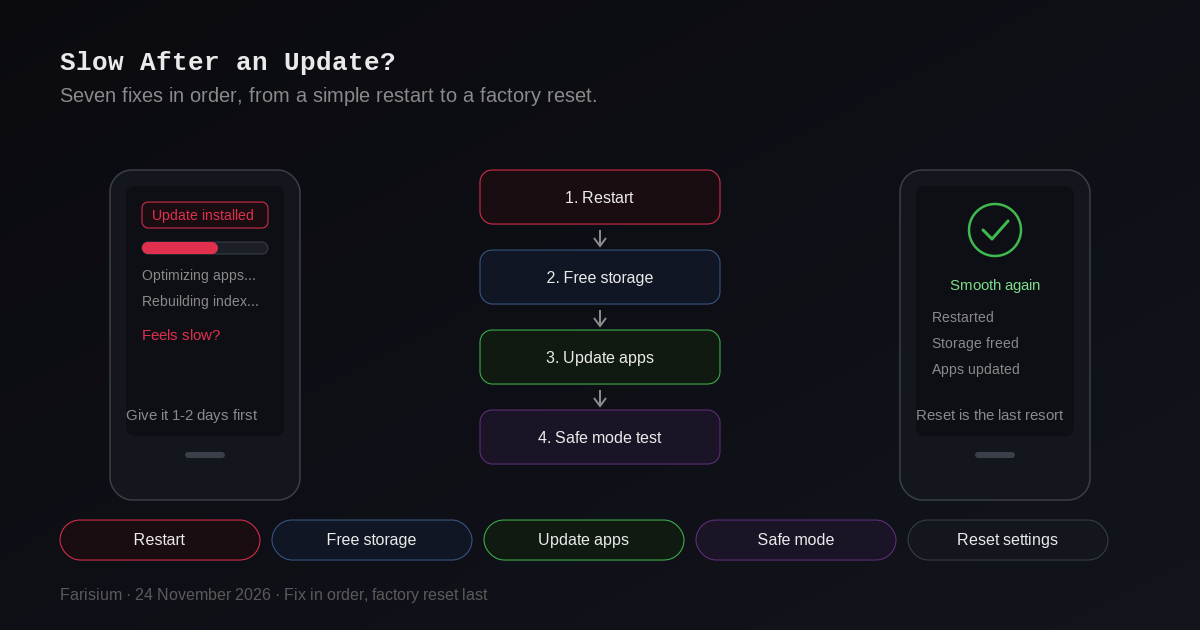
Why your phone gets slow after an update
A major update triggers a round of housekeeping. The system rebuilds its file index and optimizes installed apps in the background, which keeps the processor and storage busy. Until that finishes, typically within a day or two, the phone can feel slow and run a little warm.
Some of your apps may not be ready for the new system version yet. Until their developers ship a compatible release, those apps can run inefficiently, reload often, or close unexpectedly.
Storage matters too. The update itself takes space, and the system needs room for temporary files and caches. When storage is nearly full, everything from opening the camera to switching apps can stutter.
Updates sometimes turn features or permissions back on, and many apps resync at the same time once the phone restarts. With too many processes running in the background, memory fills up quickly.
Finally, older phones were built around an earlier system version. A major release such as Android 17 brings security fixes along with new capabilities (see our rundown of Android 17 new features), and that extra work can weigh on an older processor and limited memory.
Step 1: Restart and give the system time to settle
A restart clears stuck processes and frees memory. On Android:
- Press and hold the power button until the power menu appears. - Tap Restart. - Wait until the home screen has fully loaded.
On iPhone, follow Apple's official guide to restarting an iPhone ↗:
- Press and hold either volume button together with the side button until the slider to turn off appears. - Drag the slider. - Wait 30 seconds. - Press and hold the side button until the Apple logo appears.
If the iPhone is frozen and ignores your touch, use a force restart instead, as described on the same Apple page.
Once the phone is back on, use it normally for one to two days before deciding anything is wrong. The optimization work runs quietly in the background, and leaving the phone on the charger with a stable internet connection overnight helps it wrap up.
Step 2: Check your free storage
According to Google's official guide for an Android device that restarts or crashes ↗, a phone can start having problems when less than 10% of its storage is free. Here is where to check:
- Android: open Settings, then Storage. - iPhone: open Settings, then General, then iPhone Storage.
If space is tight, clear these first, because they tend to be large and rarely missed:
- Old files in your downloads folder, such as installers and documents you no longer need. - Large videos, especially long recordings and clips saved from group chats. - Duplicate photos and old screenshots. - Apps you have not opened in a long time.
Want to keep those photos and videos? Copy them to a computer and then remove them from the phone. Our guide on how to transfer files to a laptop without a cable walks through the options.
Android also lets you clear an app's cache through Settings, Apps, the app name, Storage, then Clear cache. This is safe and will not sign you out. Clear data (or Clear storage) is different: it wipes the app's data, so you will need to log in and set the app up again. On iPhone, the Offload App option in iPhone Storage removes the app itself while keeping its documents and data.
Step 3: Update all your apps
Apps written for the previous system version can misbehave once the OS changes underneath them. Developers usually release fixes shortly after a big update, so make sure you have them.
- Android: open the Play Store, tap your profile icon, choose Manage apps & devices, open Updates available, and update everything. - iPhone: open the App Store, tap your profile icon, and install the updates listed there.
While you are at it, check for a follow up system patch, since manufacturers often push small fixes after a major release. On Android, go to Settings, System, Software update. On iPhone, go to Settings, General, Software Update.
Step 4: Find the app causing the problem
One misbehaving app can drag the whole phone down. Open the Battery section in Settings to see which apps use the most power, then look at storage usage for any app that has ballooned in size. An app near the top of either list that you barely use deserves a closer look.
Android offers a more decisive test called safe mode. Google explains that safe mode temporarily turns off every app you downloaded, so if the slowness disappears there, an app is most likely to blame. On many phones you enter it by pressing and holding the power button, then touching and holding Power off or Restart until a safe mode prompt appears. Restart normally to leave safe mode.
If the test points to an app, narrow it down like this:
- Start with apps that were updated or installed around the time of the system update. - Remove one app, then restart the phone. - Use the phone for a while and see whether the slowness is gone. - Repeat one app at a time until you find the culprit. - Reinstall only the apps that turned out to be innocent.
Step 5: Lighten the system load
These changes delete nothing. They simply give the phone less to do at any given moment:
- Lower the screen refresh rate in Display settings, if your phone offers that option. - Shorten the screen timeout so the display turns off sooner when idle. - Cut back on animations. On Android, enable developer options by tapping Build number in About phone repeatedly until a confirmation appears, then lower or turn off Window animation scale, Transition animation scale, and Animator duration scale. On iPhone, turn on Reduce Motion under Accessibility. - Swap a live wallpaper for a still image and remove widgets you do not actually use. - Turn off background activity for apps that have no reason to run constantly, through each app's battery settings on Android or Background App Refresh on iPhone.
Step 6: Reset settings without erasing data
Sometimes an update leaves behind settings that clash with the new version. Resetting settings returns them to their defaults while leaving your photos, chats, and files alone.
- Android: go to Settings, System, Reset options, and choose Reset app preferences. Some brands also offer Reset all settings in the same menu. - iPhone: go to Settings, General, Transfer or Reset iPhone, tap Reset, then choose Reset All Settings.
Afterward you may need to redo things like default apps, app permissions, or saved WiFi networks, depending on which reset you picked. This step makes sense when storage is healthy, apps are current, and the app hunt turned up no clear culprit.
Step 7: Factory reset as a last resort
A factory reset erases everything on the phone, so try it only after the earlier steps have failed. Back up first:
- Android: turn on backup to your Google account in Settings, confirm your photos have synced, and back up important chats from within their own apps. - iPhone: back up to iCloud or to a computer.
With the backup done, run the reset:
- Android: go to Settings, System, Reset options, then Erase all data (factory reset). Use the Settings search box if your menu looks different. - iPhone: go to Settings, General, Transfer or Reset iPhone, then Erase All Content and Settings.
When the phone restarts, set it up as new or restore your backup. Install every pending system and app update before judging performance. If the phone is still slow after a reset on the latest system version, the problem is most likely hardware, and a service center is the next stop.
When to visit a service center
Some symptoms point away from software entirely:
- A swollen battery, often visible as a bulging back or frame. - A screen lifting away from the body. - A strange smell coming from the phone. - The phone getting hot while it sits idle. - Slowness that remains after a factory reset.
If the battery looks swollen, stop using the phone and do not charge it. Take it to an authorized service center as soon as you can.
Conclusion
Restart first, then give the phone a day or two. If it is still slow, free up storage, update your apps, track down the problem app, lighten the system load, and reset settings. Keep the factory reset for last, and if even that fails, let a service center take a look.
Sources
Explore Farisium AI tools to help you work faster
Explore Farisium AI Tools