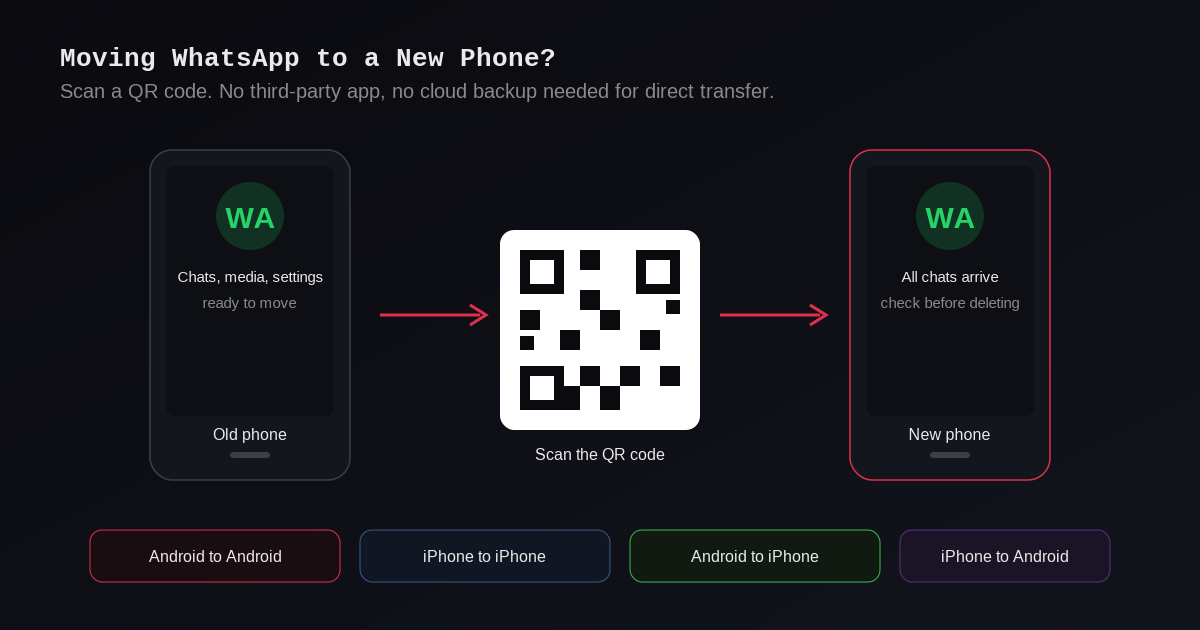
The fastest safe way to move WhatsApp to a new phone is the Chat Transfer feature built into WhatsApp itself. You do not need a third-party app, a paid tool, or a computer. Your old and new phones connect directly, you scan a QR code, and your chats, media, and settings move across. The exact steps depend on your phones, so pick the method that matches your old and new device: Android to Android, iPhone to iPhone, Android to iPhone, or iPhone to Android.
This guide covers all four official methods using the steps WhatsApp publishes in its Help Center. It also explains what to do if the transfer gets stuck and what your options are if the old phone is lost or broken. One rule matters more than anything else: do not delete anything on the old phone until the new phone shows all of your chats. As long as the old phone stays untouched, your messages are still there, even if the transfer goes wrong.
Before you switch
A few minutes of preparation saves a lot of frustration. Most failed transfers come down to something simple, such as an outdated app, Wi-Fi switched off, or WhatsApp already activated on the new phone before the transfer started.
It is also a good moment to make sure your account is in good shape before you move it. If you have noticed strange activity, such as messages you did not send or unknown linked devices, read our guide on how to check if your WhatsApp is hacked and sort that out first. Then run through this checklist:
- Use the same phone number on the new phone that you use on the old one. - Update WhatsApp to the latest version on both phones. - Make sure the new phone has enough free storage for your chats and media. - Turn Wi-Fi on for both phones. - Charge both phones, or keep them plugged in, and place them close to each other. - Do not register or set up WhatsApp on the new phone before you start the transfer on the old phone. - Do not delete WhatsApp, reset, or wipe the old phone yet.
Method 1: Android to Android with Chat Transfer
If both phones run Android, Chat Transfer moves everything directly from one phone to the other without going through Google Drive. The steps below follow WhatsApp's official guide for Android to Android transfer ↗.
Requirements: both phones need Android 6 or above, and the new phone must use the same phone number. The new phone must not be registered on WhatsApp until you start the migration on the old phone. Keep the phones close together and connected to a power source. Both need Wi-Fi enabled, although they do not need to be connected to a network. On Android 12 and below, WhatsApp asks for precise location permission. According to WhatsApp, it does not collect your precise location.
- On the old phone, open WhatsApp and tap More Options, then Settings, Chats, Transfer chats, and Start. - Accept the requested permissions and get ready to scan a QR code that will appear on the new phone. - On the new phone, download and open WhatsApp, tap Agree and continue, and verify your phone number. - Accept the permissions, then under Restore or transfer chats, select Transfer from old phone. - Tap Continue, then Start, and accept the permission to access nearby Wi-Fi devices. - Use the camera on the old phone to scan the QR code shown on the new phone. - Tap Accept on the new phone to link the two phones. - Watch the percentage bar as the transfer runs. Keep both phones unlocked and stay inside WhatsApp. Messaging is paused during the transfer, and you can tap Cancel at any time. - When the import is complete, tap Next on the new phone.
A few things do not come across: peer-to-peer payment messages and media you received through WhatsApp Channels. This method also does not work with the WhatsApp Business app. Until you have confirmed that everything arrived on the new phone, do not delete data, reset, or uninstall WhatsApp on the old phone.
Method 2: iPhone to iPhone with an iCloud backup
When you move from one iPhone to another, the standard route is to back up WhatsApp to iCloud on the old phone and restore that backup on the new one. It takes a little more preparation than a direct transfer, but the flow is simple.
There are three conditions. iCloud Drive must be turned on, both iPhones must be signed in to the same Apple ID, and your iCloud account needs enough free storage to hold the backup. If iCloud is full, the backup will not complete, so check your available space before you begin.
- On the old iPhone, open WhatsApp and go to Settings, then Chats, then Chat Backup. - Tap Back Up Now and wait for the backup to finish. - On the new iPhone, install WhatsApp and verify the same phone number. - When WhatsApp offers to restore, tap Restore Chat History. - Wait for the restore to finish before you start using WhatsApp.
Keep the old iPhone as it is until the new one shows your chats. If the restore does not work the first time, the original data is still on the old phone and you can back up again.
Method 3: Android to iPhone
Switching from Android to iPhone used to be a headache, but WhatsApp now supports a direct transfer between the two platforms. The steps here follow WhatsApp's official guide for moving Android to iPhone ↗.
Requirements: the Android phone needs Android 10 or above, and the iPhone needs iOS 15.5 or above. Both phones should run the latest version of WhatsApp and use the same phone number. The iPhone must not be registered on WhatsApp until you start the transfer on the Android phone.
- On the Android phone, open WhatsApp and go to Settings, then Chats, then Transfer chats, then Transfer to iPhone. - Tap Start and wait while your chats are prepared. - On the iPhone, install the latest WhatsApp from the App Store, open it, and verify your account with the same phone number. - Grant network permissions on both phones. - A QR code appears on the Android phone. Use the camera inside WhatsApp on the iPhone to scan it. - When prompted, tap Join to connect to the Wi-Fi network and start the transfer. - Keep both phones unlocked, close to each other, and inside WhatsApp until the transfer finishes. - When it completes, tap Next on the iPhone and finish registration, then tap Chats.
What transfers: personal messages, account information, individual chats, group chats, communities, WhatsApp Channels updates, call history, media, and settings. What does not: your display name, peer-to-peer payment messages, and media received over WhatsApp Channels. You can also move WhatsApp with Apple's Move to iOS app, but only while setting up a new or factory reset iPhone. Neither option works with the WhatsApp Business app.
The transferred data does not go to cloud storage until you create an iCloud backup on the iPhone, and WhatsApp says it cannot see the data you transfer. Your Android phone still keeps the data unless you delete WhatsApp or wipe the phone.
Method 4: iPhone to Android
Going the other way, from iPhone to Android, also works over a direct local Wi-Fi connection. The new Android phone needs Android 6 or above, both phones need the latest version of WhatsApp, and you need a stable Wi-Fi connection and the same phone number on the new device.
- On the iPhone, open WhatsApp and go to Chats, then Transfer chat history, then Transfer to Android. - When your chats are prepared, tap Continue. If prompted, tap Allow for camera access. - Keep the iPhone unlocked during the whole transfer. - On the Android phone, open WhatsApp and verify your account with the same number. - When prompted, tap Allow to let the devices connect. A QR code is displayed. - Use the iPhone camera to scan the QR code. - When prompted, tap Join to connect to the Wi-Fi network and start the transfer. - When the transfer completes, tap Next on the Android phone to view your chats.
There are some important rules here. You can only transfer before activating WhatsApp on the new Android phone. If you already set it up, you must uninstall WhatsApp on the new device and start again, and uninstalling deletes any chats already saved there, so check for a backup first. You cannot merge new chats from the new phone with your old chats. Status updates do not transfer, along with your display name, peer-to-peer payment messages, and media received over WhatsApp Channels. The WhatsApp Business app is not supported. Because the data moves over local Wi-Fi, it does not go to cloud storage, and it stays on the iPhone until you delete it yourself.
If the transfer fails or gets stuck
First, do not panic. If a direct transfer fails, freezes, or shows an error, your data is still on the old phone. Nothing is lost as long as you have not deleted WhatsApp or reset that device.
Work through these fixes, then try the transfer again:
- Restart both phones: turn them off, wait 30 seconds, turn them back on, and retry. - Check that Wi-Fi is turned on for both phones and that location permission is granted where WhatsApp asks for it. - Update WhatsApp to the latest version on both phones. - Check that the new phone has enough free storage for all your chats and media. - Keep both phones unlocked and stay inside WhatsApp for the entire transfer.
If you are moving from iPhone to Android and WhatsApp was already activated on the new phone, that alone can block the transfer. Uninstall WhatsApp on the Android phone and start over, keeping in mind that this deletes any chats already stored on it.
If the old phone is lost or broken
Every direct transfer method in this guide needs the old phone to be working and nearby. If it was lost, stolen, or will not turn on, the only way to get your chats back is a cloud backup made before that happened: Google Drive for Android or iCloud for iPhone. When you install WhatsApp on the new phone and verify the same number, WhatsApp will offer to restore from that backup if it finds one.
To be honest about the limits: if you never made a backup, the chats cannot be recovered. There is no hidden copy that support or a recovery app can pull back. The best thing you can do is protect yourself for next time by turning on automatic chat backup in WhatsApp settings. For photos and documents stored outside WhatsApp, see our guide on how to move other files to a laptop without a cable so you always have a second copy.
Conclusion
Moving WhatsApp to a new phone is straightforward once you know which method fits. Android to Android uses Chat Transfer, iPhone to iPhone uses an iCloud backup and restore, and Android to iPhone or iPhone to Android use WhatsApp's direct cross-platform transfer with a QR code. None of them need a third-party app, and none of them work with the WhatsApp Business app.
Whichever method you use, follow the golden rule: keep the old phone untouched until the new one shows all your chats. Prepare both phones properly, keep them close, charged, and unlocked, and turn on automatic backup afterward so a lost or broken phone never costs you your conversations.
Sources
Explore Farisium AI tools to work faster
Explore Farisium AI Tools