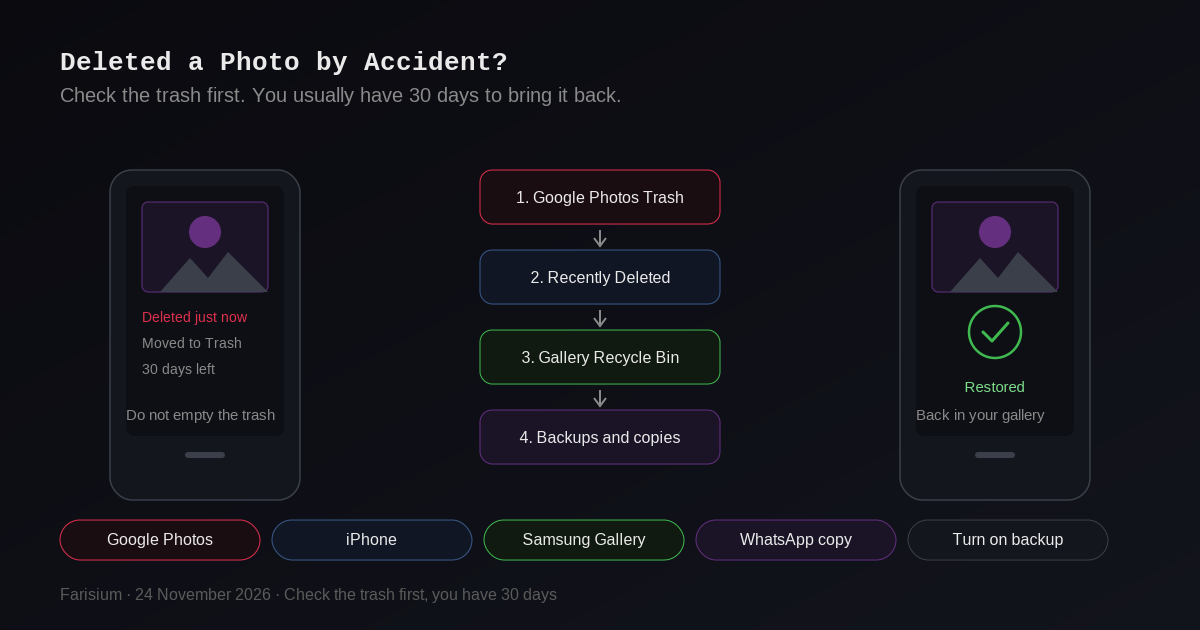
If you just deleted a photo by accident, check the trash first. On both Android and iPhone, deleted photos usually sit in a trash or Recently Deleted folder for 30 days before they disappear for good. Do not empty that trash. Act now, while the photo is still there.
This guide covers Android phones (including Samsung) and iPhone. The methods are ordered from easiest to hardest, so start with the first and move down only if the photo is not where you expected.
Why a Deleted Photo Can Still Come Back
When you delete a photo, most phones do not erase it right away. They move it to a trash folder that works as a safety net for exactly this kind of mistake.
The 30 day countdown starts the moment you delete the photo, not when you notice it is missing. If you or anyone else empties the trash, the safety net is gone and the photo is permanently deleted.
Method 1: Restore from Google Photos Trash
If you use Google Photos, this is the first place to look. According to the Google Photos official guide ↗, deleted photos and videos stay in the trash for 30 days before they are permanently deleted. This applies to backed-up photos and to photos deleted from a device running Android 11 or later without backup.
Many older guides still say the Google Photos trash keeps photos for 60 days. That figure is outdated. The current official policy is 30 days, so do not wait thinking you have more time.
The steps are similar in the Android app and the iPhone app:
- Open the Google Photos app. - Tap Collections, then tap Trash. - Select the photos you want back. - Tap Restore.
Keep in mind that emptying the Google Photos trash permanently deletes everything in it. Google also states that permanently deleted content cannot be recovered with its Google Takeout export service.
Method 2: Restore from Recently Deleted on iPhone
On iPhone, deleted photos go to the Recently Deleted album. The Apple official guide ↗ says they stay there for 30 days, and after that they are permanently deleted and cannot be recovered.
To get a photo back:
- Open the Photos app and swipe up. - Under Utilities, tap Recently Deleted. - Tap View Album and unlock with Face ID, Touch ID, or your passcode. - Tap a photo, then tap Recover. To restore several at once, tap Select, choose the photos, tap the More button, then tap Recover. - Confirm when asked.
If your iPhone is not at hand, the same Recently Deleted album is available at iCloud.com under Photos and on a Mac.
Method 3: Check Your Phone Gallery Trash
Many Android phones have a separate trash in their own gallery app. Samsung Gallery has a Recycle Bin that keeps deleted photos and videos for 30 days, based on Samsung support guidance.
There is an important catch. The Recycle Bin must have been switched on before the photo was deleted. If it was off, nothing was kept there.
To check it on a Samsung phone:
- Open Gallery. - Tap Menu, then tap Recycle Bin. - Select the photos you want. - Tap Restore.
Menu labels can differ depending on your model and One UI version, so look for similar wording if you do not see these exact names.
Also remember that each app has its own bin. Google Photos trash, your phone gallery trash, the Files by Google trash, and the My Files recycle bin on Samsung are all separate. When backup is on, deleting a photo in Google Photos also deletes it from your device, so check every one of these locations before giving up.
Method 4: Look for a Copy Somewhere Else
Even if the photo is not in any trash, a copy may still exist elsewhere. Before you assume it is gone, look in these places:
- Your account: make sure you are signed in to the right Google or Apple account. A photo that seems missing is sometimes sitting in another account. - Google Photos on a computer: open photos.google.com in a browser and search there. - Google Drive: check whether you ever uploaded or saved the photo there. - WhatsApp: if the photo was sent or received in WhatsApp with auto-download on, it may still be in your gallery or in the WhatsApp Images folder, even after the chat message was deleted. - SD card: if your phone uses a memory card, browse its photo folders with a file manager. - Another device: check a tablet, an old phone, or a computer where the photo may have synced or been copied.
If the Photo Is Already Permanently Deleted
If the photo was deleted more than 30 days ago, or removed from the trash itself, recovery gets much harder. Both Google and Apple state that permanently deleted photos cannot be restored through their services.
Recovery apps do exist, but success is not guaranteed. This is especially true on modern Android phones, where deep scanning is limited. Be careful with these apps:
- Do not pay any app that asks for money before showing you what it found. - Do not grant broad permissions to apps that look untrustworthy.
Use your phone as little as possible after the deletion. New data can overwrite the space where the deleted file used to be, which lowers any chance of getting it back.
A professional data recovery service is the last resort. There is no promise of success, and it usually comes at a real cost.
How to Keep This from Happening Again
A few simple settings can save you from this stress next time:
- Turn on backup in Google Photos or iCloud Photos so your photos have a copy in the cloud. - On Samsung, make sure the Gallery Recycle Bin is switched on now. It only protects photos deleted after it is enabled. - Move important photos to a laptop as an extra safety net. This guide explains how to transfer files to a laptop without a cable. - Do not empty the trash in a panic to free up space. Wait until you are sure you no longer need anything in it.
Conclusion
Most accidentally deleted photos can be recovered if you act within 30 days. Check Google Photos trash, Recently Deleted on iPhone, and your gallery or file manager bins, then look for copies in other places. If the photo is permanently deleted, be cautious with recovery apps, and turn on backup so you are protected next time.
Sources
Explore Farisium AI tools to help you work faster
Explore Farisium AI Tools