To fix a phone screen with lines, start by matching the line pattern to its likely cause, then work through the cheapest checks first. Restart the phone, clean the screen, remove the case, screen protector, and any connected accessories, and take a screenshot to see whether the lines show up in the saved image. After that, install any available system update, and on Android, test the phone in safe mode to rule out a third-party app. If the lines survive all of these steps, the display itself is most likely damaged and needs a repair.
This guide follows Apple's official troubleshooting steps for iPhone and Google's official guidance for Pixel phones, plus standard procedures that work on most Android devices. It does not include risky tricks that can make the damage worse. The goal is to separate a software glitch you can fix at home from a hardware fault that needs a technician.
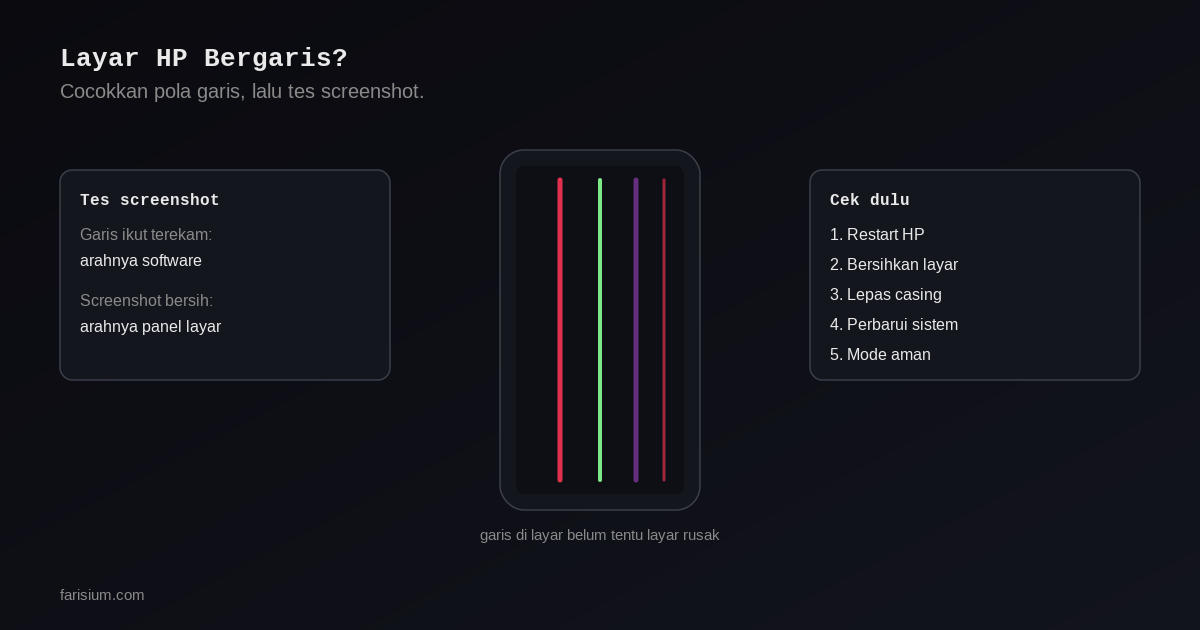
Match the Line Pattern to the Likely Cause
The way the lines look gives you a strong hint about where the problem comes from. Use the patterns below to set your expectations before you start troubleshooting.
- Thin vertical line: often a sign that the display panel or its connection has a fault, especially if the line stays in the same place no matter what is on screen.
- Horizontal line: can come from the panel or the display connector. Google notes that horizontal or vertical lines may point to a hardware issue.
- Green or purple line: almost always indicates hardware damage to the display and needs a repair.
- Flickering or moving lines: may be caused by a software glitch, a heat issue, or a failing panel. Google lists flickering among the screen issues that can be hardware related.
- Lines in only one app: usually a software problem with that app rather than the screen itself.
- Lines after a drop or water exposure: almost always physical damage to the panel or internal components.
- Lines in a screenshot or not: if the lines appear in a screenshot, the cause is software. If the screenshot looks clean, the problem is in the display panel.
Quick Checks: The First Five Minutes
Before changing any settings, run through these basic checks in order. They cost nothing, carry no risk, and they clear up a surprising number of display glitches.
- Restart the phone. A normal restart clears temporary glitches in the graphics system. If the screen is frozen or the phone keeps rebooting on its own, see how to fix a phone that keeps restarting itself, which covers the force restart method.
- Clean the screen. Wipe it with a soft, dry, lint-free cloth so that dirt, debris, or moisture is not mistaken for a line or interfering with touch.
- Remove the case and screen protector. A cracked or lifted protector can look like a line, and a tight case can put pressure on the edges of the display.
- Disconnect accessories. Unplug any cables, adapters, or other accessories connected to the charging port, then check whether the lines remain.
- Cool the phone down if it feels hot. Stop using it, take it out of the case, keep it out of direct sunlight, and let it return to a normal temperature on its own.
- Take a screenshot for the test. Capture the screen while the lines are visible, then open the screenshot on the phone or send it to another device to see whether the lines appear in the image.
How to Fix Lines on an Android Phone
Google's official guidance for Pixel phones says that if your screen flickers, has a green tint, or shows horizontal or vertical lines, it may be a hardware issue. The recommended step is to check for a system update by opening the Settings app, going to System, then System update, and installing anything available. If that does not solve it, Google advises contacting them or getting the phone repaired. On other Android brands, the update menu may have a different name, so search for update in Settings. The rest of the steps below are standard Android procedures.
- Run the quick checks above first, including the screenshot test.
- Install system updates. On a Pixel, go to Settings > System > System update. If the lines or other problems started right after an update, the guide on how to fix a slow phone after an update covers the usual post-update issues.
- Update your apps from the Play Store, especially if the lines appear only inside a specific app.
- Clear the cache of the app that shows lines. If you are not sure how, follow this guide to clear the cache on your phone.
- Test in safe mode. On many Android phones, press and hold the power button, then touch and hold the Power off or Restart option until the safe mode prompt appears. Safe mode temporarily disables third-party apps.
- Read the safe mode result. If the lines disappear in safe mode, a downloaded app is the likely cause, so uninstall recently added apps one at a time. If the lines stay in safe mode, the problem is almost certainly hardware.
- Know when to stop. If the lines are green or purple, appeared after a drop or water exposure, or persist in safe mode, stop troubleshooting and contact the manufacturer or a repair service, as Google recommends.
How to Fix Lines on an iPhone
Apple's support article on iPhone and iPad screens that are not working lists a short sequence of checks. The steps below follow that order, with the screenshot test added as a way to read the result.
- Restart your iPhone. If it does not respond normally, use a force restart, which you can find in the restart guide linked in the quick checks above.
- Make sure the screen is clean and free of any debris or water.
- Disconnect any Lightning or USB-C accessories from the iPhone.
- Remove any case or screen protector, then check the display again.
- Take a screenshot to see whether the lines are part of the image or only visible on the panel.
- Update iOS from Settings > General > Software Update if an update is available.
- Set up service. Apple says that if the screen still is not working after these steps, you might need to set up service with Apple or an authorized service provider.
Which Fix to Use When
- Lines appear in screenshots: treat it as software. Restart, update the system, update or clear the cache of the affected app, and test safe mode on Android.
- Lines do not appear in screenshots: the panel is the likely cause. Run the quick checks, then plan for a repair if nothing changes.
- Lines appear in only one app: update that app, clear its cache, or reinstall it.
- Lines appeared after a system update: install any newer update and check whether other software issues appeared at the same time.
- Lines appear when the phone is hot: let it cool down and see whether the lines fade. If they return, have the display checked.
- Green or purple lines: go straight to a repair service.
- Lines after a drop or water exposure: stop using the phone heavily and get it repaired.
- Lines that persist in Android safe mode: hardware damage is the most likely cause, so contact the manufacturer or a repair shop.
Still Lined After Every Step?
If you have worked through every step and the lines are still there, a few final checks will help you confirm the cause before you pay for a repair. They also give the technician useful information.
- Repeat the screenshot test on different screens, such as the home screen, a white background, and a dark background.
- Compare photos and videos. Take a photo of the screen with another device and compare it with the screenshot. If the lines show in the photo but not in the screenshot, the panel is at fault.
- Inspect the screen under bright light. Look for cracks, pressure marks, or swelling around the edges that could explain the lines.
- Consider a factory reset only as a last resort. Back up your photos, contacts, chats, and files first, because a reset erases everything on the phone. A reset only helps if the cause is software.
- Take the phone to an authorized service center. If the lines are caused by hardware, a repair or a display replacement is the only reliable fix.
Conclusion
Fixing a phone screen with lines starts with reading the line pattern and running the simple checks: restart, clean the screen, remove the case and accessories, and take a screenshot to see whether the lines are software or hardware. Then install system updates, and on Android, test safe mode. If the lines are green or purple, appeared after a drop or water exposure, or remain in safe mode, skip further home fixes and follow Apple's and Google's advice to get the phone serviced.
Sources
Want to work faster with the help of artificial intelligence? Try the free AI tools available on Farisium.
Explore Farisium AI Tools