If your phone speaker has gone silent, start by noticing exactly what is missing. Is it every sound, or only calls, only music, or only one app? That single observation tells you whether you are dealing with a setting, an app, a connected accessory, or the speaker itself. It also keeps you from wasting time on fixes that do not apply to your situation.
Most of the time the cause is simple. The media volume may be down while the ringtone is up, the phone may still be connected to Bluetooth earbuds or a car, Do Not Disturb may be on, or a case may be blocking the speaker opening. This guide starts with the cheapest checks, then covers the step by step fixes for Android and iPhone based on Google and Apple support guidance, and ends with what to do if the speaker still stays quiet.
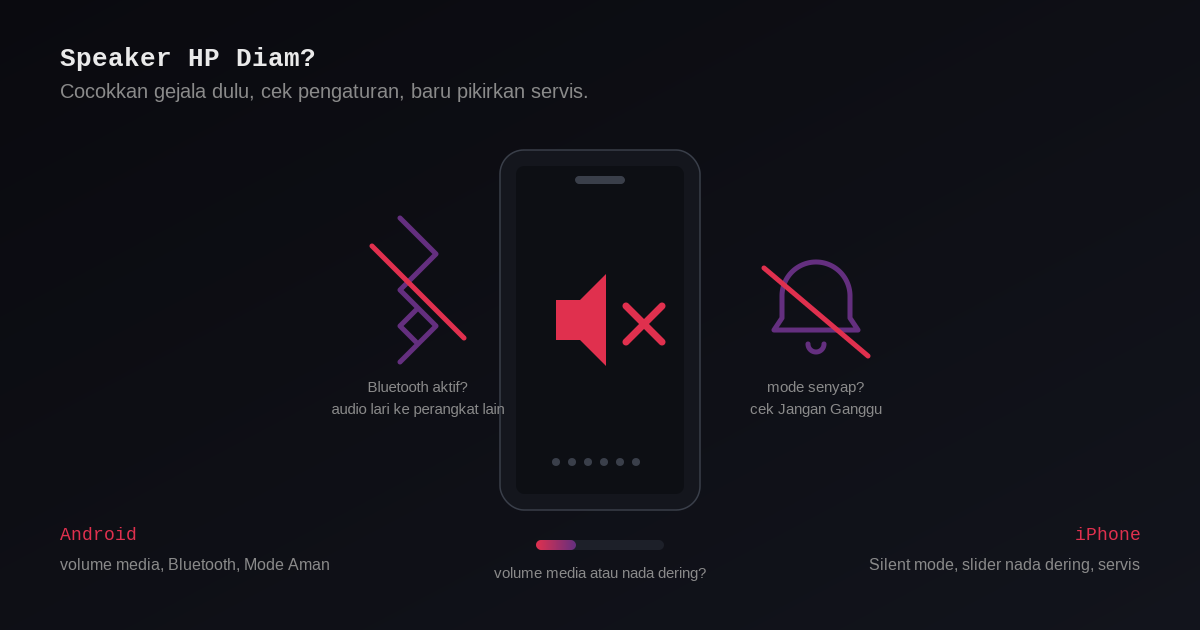
Match the Symptom to the Cause First
Different symptoms point to different causes. Find the description below that best matches what you are experiencing, and you will know which fix to try first.
- No sound at all, not even ringtones: Silent mode, Do Not Disturb, or audio being sent to a Bluetooth device.
- Ringtone works but music and videos are silent: the media volume is turned down, because Android keeps separate volume channels.
- Sound works everywhere except in one app: that app's own settings, a recent update, or corrupted cached data.
- Only certain songs or videos are silent or distorted: those specific files may be broken.
- Sound is muffled or very quiet: a case, screen protector, film, or dirt is covering the speaker opening.
- The phone behaves as if headphones are plugged in when they are not: the audio output is stuck in headphone mode.
- Crackling or distortion in every app, or only one speaker working: this usually points to a hardware problem.
Quick Checks: The First Five Minutes
Before you open any deep settings, run through these basic checks. They cover the most common reasons a speaker seems dead, and none of them change your data.
- Check media and ringtone volume separately. Press a volume button while a video is playing so you adjust media volume, not the ringtone. On Android, open the volume panel and expand it to see every slider.
- Turn Bluetooth off. Your phone may still be connected to earbuds, a portable speaker, or your car and sending all audio there.
- Turn off Do Not Disturb. Also look for a schedule that turns it on automatically at certain times.
- Restart your phone. A restart clears temporary glitches in the audio system and in apps.
- Try several apps. Play sound from a music app, a video app, and a game to see whether the silence is everywhere or limited to one place.
How to Fix the Speaker on Android
Menu names vary between brands, but the options below exist on almost every Android phone. Work through them in order and test the sound after each step. If only one app has no audio, clearing that app's cache often helps, and you can read more about it in our guide on how to clear cache on your phone.
- Open Settings > Sound (or Sound & vibration) and raise the media, call, ringtone, and alarm volume one by one.
- Turn Bluetooth off from Quick Settings, then play a video again.
- Open Settings > Notifications or Sound > Do Not Disturb, switch it off, and check for any automatic schedules.
- Remove the case and screen protector, since either can cover the speaker or microphone openings.
- Gently clean the speaker and microphone openings with a soft, lint-free cloth. Check the USB-C port as well and clean it gently.
- If headphones are plugged in, unplug and reconnect them, or try a different pair. If the phone thinks headphones are connected when they are not, plug wired headphones in, unplug them, and restart.
- Restart the phone, then play 2-3 different songs or videos from different apps. If only some of them sound wrong, those files may be broken.
- If only one app is silent, check its in-app mute or sound settings, update it, then go to Settings > Apps > select the app > Storage and tap Clear cache.
- Boot into Safe Mode, which usually starts by pressing and holding the power off option on the screen. If sound works in Safe Mode, a third-party app is interfering, so uninstall recently installed or updated apps one at a time.
How to Fix the Speaker on iPhone
Apple's official support page for no sound or distorted sound lays out a clear sequence. Follow these steps in order, because each one rules out a common cause before you assume the speaker needs repair.
- Turn off Silent mode. Push the Ring/Silent switch toward the screen so no orange shows. If your iPhone has an Action button set to Silent, use it to turn Silent mode off.
- Go to Settings > Focus > Do Not Disturb and make sure it is off.
- Remove all screen protectors, films, and cases from the iPhone.
- Check the speaker opening for blockage or dirt, and check the receiver at the top of the screen too.
- If you see debris, clean the openings with a small, soft-bristled brush that is clean and dry.
- Go to Settings > Sounds (or Sounds & Haptics) and drag the Ringtone and Alerts slider back and forth a few times.
- If you hear no sound, or the speaker button on the slider is dimmed, your speaker might need service.
- If you do hear sound, make a call with speakerphone on. If you still cannot hear, or you hear static or crackling, your network or reception could be the issue rather than the speaker.
Which Method to Use When
- Everything is silent: check Silent mode, Do Not Disturb, and Bluetooth first.
- Only music and videos are silent on Android: raise the media volume while something is playing.
- Only one app is silent: check its settings, update it, clear its cache, then test in Safe Mode.
- Sound is muffled: remove the case and screen protector, then clean the openings gently.
- Calls sound bad but ringtones are fine: test speakerphone and consider your network or reception.
- Phone is stuck in headphone mode: plug and unplug wired headphones, then restart.
- Distortion everywhere or no sound after every step: contact support or a service center.
Still No Sound?
If the quick checks and platform steps did not help, run a few final tests to separate software problems from hardware failure. If your phone is also rebooting randomly or freezing, that points to a deeper software or hardware issue, and our guide on how to fix a phone that keeps restarting itself may help you diagnose it.
- Ringtone test: preview a ringtone in the sound settings. If the preview is silent with the volume up, the problem is likely below the app level.
- Local video test: play a video saved on the phone rather than a stream, which rules out internet and streaming app issues.
- Water and moisture check: if the phone recently got wet, let it dry completely before testing the speaker again, because moisture can muffle or block sound.
- Reset settings or factory reset: resetting settings restores system defaults without erasing your files, while a factory reset erases everything and should be a last resort. Back up your photos, contacts, and chats before either option.
- Service center: if no sound comes from the speaker in any app after all of this, the speaker or audio hardware likely needs professional repair.
Conclusion
A silent phone speaker is usually caused by a setting or accessory, not a broken part. Start by matching your symptom, then check volume channels, Bluetooth, Do Not Disturb, and anything covering the speaker. Follow the Android or iPhone steps in order, test in several apps, and save resets for last with a backup ready. If the speaker stays silent everywhere after every step, a service center is the right next move.
Sources
Want to work faster with the help of artificial intelligence? Try the free AI tools available on Farisium.
Explore Farisium AI Tools