If your phone will not update, the cause is usually one of three things: low battery or an unstable connection, not enough free storage, or a phone that no longer supports the newest software. Work through the fixes in this order: charge and connect to Wi-Fi, free up space, check device support, delete a broken download, then update through a computer.
This guide covers both Android phones and iPhones. You will learn how to spot which of the four failure stages you are dealing with, follow the official steps from Apple and Google, and recognize when it is time to stop and take the phone to a service center.
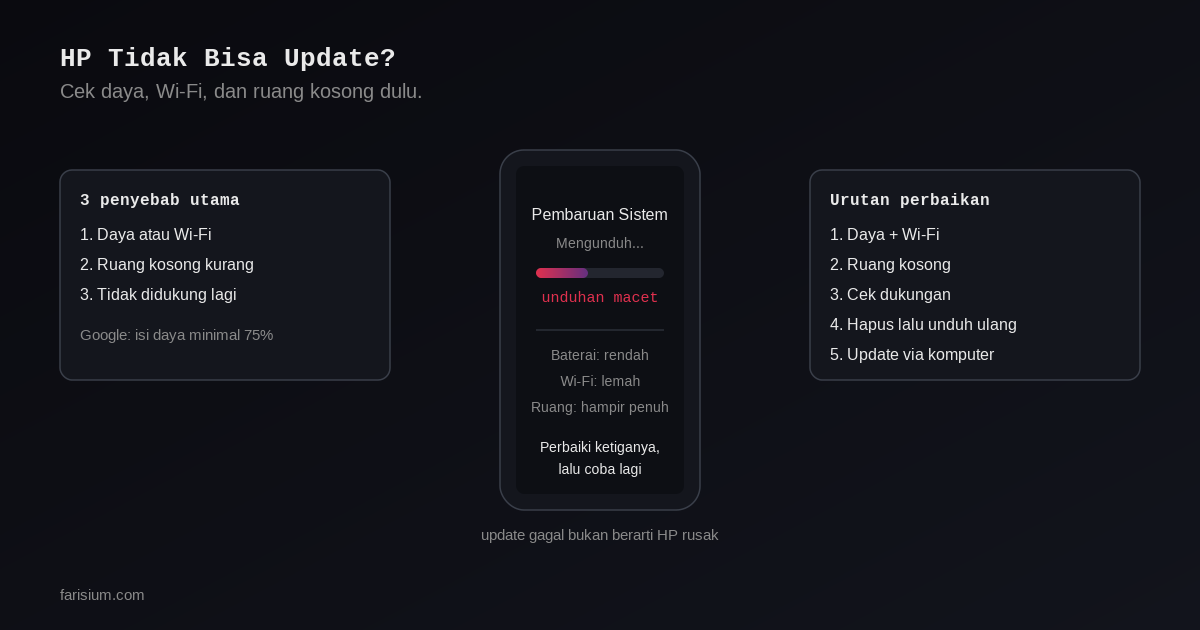
Find Out Where the Update Is Failing
Before you change anything, notice exactly when the process breaks down. The stage tells you which fix to try first.
- The update never appears: your phone may no longer be supported, or the update has not reached your device yet.
- The download fails or stalls: this usually points to a weak connection, not enough storage, or a low battery.
- The installation fails or stops halfway: the downloaded file may be corrupted, or the phone ran short of power or space during the install.
- The phone is stuck on a logo or progress bar after the update: the install may still be finishing, or it was interrupted. If the phone keeps looping through restarts instead, read how to fix a phone that keeps restarting itself.
Get Ready Before You Try Again
A few minutes of preparation removes the most common reasons an update fails. Do these before every retry.
- Back up important data such as photos, chats, and contacts, using your cloud account or a computer.
- Charge the phone fully and keep it plugged in for the whole update.
- Connect to a stable Wi-Fi network. Update files are large, so a weak or unstable connection can corrupt the download.
- Make free space by removing apps, photos, and files you no longer use. Cached files add up too, so see how to clear cache on a phone for the steps.
- Note your current software version so you can confirm later whether the update actually installed.
How to Fix an Android Phone That Won't Update
Google explains the basics in its guide to checking and updating your Android version ↗. Before updating, it recommends that you connect to Wi-Fi and charge the device to at least 75 percent. Then follow these steps in order.
- Check your current version: open Settings, tap About phone, then Android version. You will see the Android version, Android security update, Google Play system update, and build number.
- Open Settings, tap System, then Software updates, and follow the on-screen instructions.
- If nothing happens or an error appears, restart the phone to clear temporary glitches, then try again.
- If a download starts but does not finish, let the device handle it. It automatically tries again over the next few days and shows a notification. Open it and tap the update action.
- Check whether your device is still supported. Google notes that older devices cannot always run newer Android versions, so a new version may simply not exist for your model.
- On a Pixel phone, the update installs in the background and becomes active the next time you restart. Many other Android phones restart automatically while installing, so do not interrupt them.
Menu names can differ slightly by brand. Some phones place updates under About phone or a separate Software update entry, but the order of checks stays the same.
How to Fix an iPhone That Won't Update
Apple lists five reasons an iPhone may not update wirelessly in its guide on what to do if your iPhone or iPad will not update ↗: the device does not support the latest software, there is not enough storage, the download takes longer than expected, the device cannot reach the update server, or the update does not complete. Work through them in this order.
- Identify your iPhone model and check whether it is on the list of compatible devices for the latest iOS.
- Free up space: go to Settings, General, iPhone Storage, and tap Enable next to Offload Unused Apps. This temporarily removes app data without deleting your personal information. You can also delete apps manually.
- Connect to stable Wi-Fi and avoid downloading other content while updating. Download time depends on the update size and your internet speed.
- If you see "Unable to Check for Update" or "Unable to Download", try updating again on the same network. If the alert still appears, switch to another network.
- If the problem repeats on multiple networks, delete the update: go to Settings, General, iPhone Storage, find the update in the list, tap it, and tap Delete Update. Then download it again from Settings, General, Software Update.
- If it still fails, or the update does not appear in the storage list, update the iPhone using a Mac or iTunes. Apple also notes that some updates are not available wirelessly.
- Keep the iPhone connected to power throughout a wireless update. If it runs out of power, plug it in and turn it on so the update can complete.
If your computer does not recognize the iPhone, or the screen shows the Apple logo for several minutes without a progress bar, recovery mode is the next step. If recovery mode does not work either, take the phone to Apple or an authorized service provider.
Which Fix to Use for Each Situation
Once you know the stage, match it to the right method instead of trying everything at once.
- The update never appears: check manually in Settings and confirm your model is still supported.
- The download stalls: switch to stable Wi-Fi and free up space, then let the automatic retry run.
- The installation keeps failing: delete the update file and download it again.
- Every wireless method fails: update through a computer.
- The phone is stuck on a logo: leave it plugged in and wait, then try recovery mode or take it to service.
Update Still Failing? Check These First
If you have followed the steps and the update still refuses, one of these less obvious issues may be the cause.
- A VPN or proxy can stop the phone from contacting the update servers. Turn it off before updating.
- A wrong date and time can break the connection to the update servers. Set both to update automatically.
- Third-party apps that modify the system, or a rooted phone, can make official updates fail. Undo those changes or ask a service center for help.
- Free space may look sufficient while the update still refuses to install, because unpacking needs extra room. Clear cache and remove large files such as videos.
- If the update succeeds but the phone becomes sluggish or misbehaves afterwards, read the guide on how to fix a slow phone after an update.
Conclusion
A phone that will not update can usually be fixed at home. Start with a full charge and stable Wi-Fi, free up storage, and confirm that your model still supports the latest software. If the download or install keeps failing, delete the update and download it again, then move to a computer. Recovery mode and professional service come last, and a factory reset should only happen after a full backup.
Sources
Want to work faster with the help of artificial intelligence? Try the free AI tools available on Farisium.
Explore Farisium AI Tools