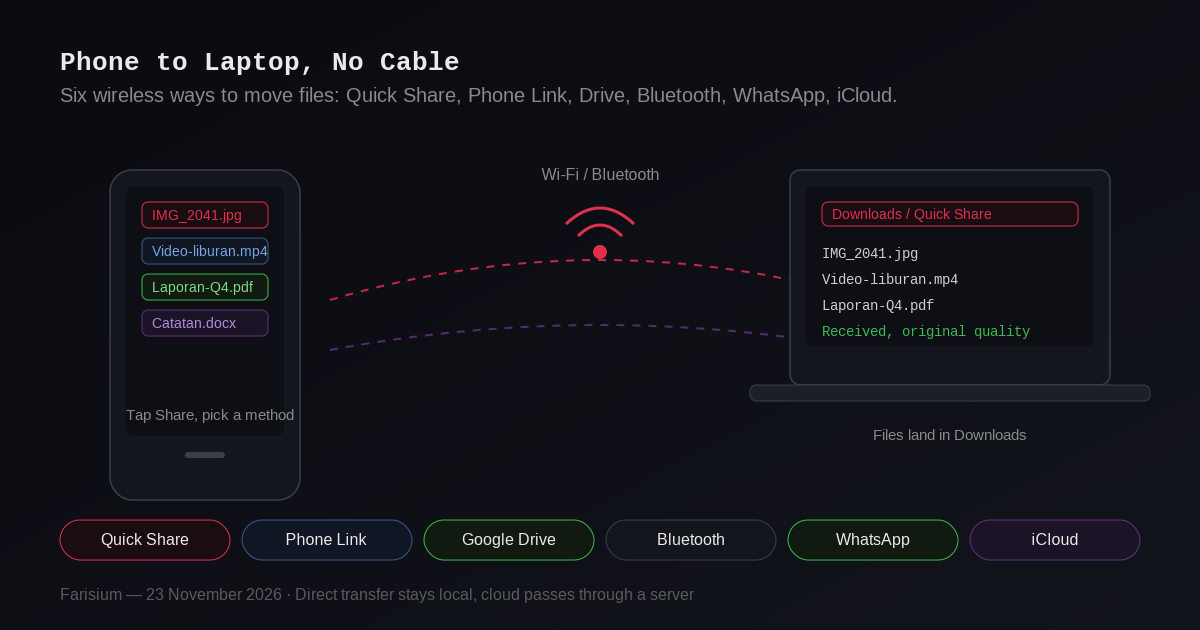
If you have an Android phone and a Windows laptop, Quick Share is usually the fastest way to transfer files from phone to laptop without a cable. It is built into Android 6.0 and later, and the laptop only needs a free app. Files travel directly between the two devices instead of through a cloud server, and they are encrypted while being shared.
If Quick Share isn't an option, pick by device and file. Phone Link suits Android users who want a lasting connection to a Windows PC. Google Drive or iCloud Drive works best for files you need to reach from anywhere. Bluetooth handles small files with no app or internet, and WhatsApp Web or email is fine for one or two quick files. iPhone users sending to a Mac should use AirDrop.
1. Quick Share (Android to Windows)
Quick Share uses Bluetooth and Wi-Fi to find nearby devices and move files between them. Your laptop must run 64-bit Windows 10 or later, or Windows 11 on an ARM-based PC. Both devices need Bluetooth and Wi-Fi (or Ethernet on the laptop) turned on, must be on the same network, and should be within about 5 meters of each other.
- Download the Quick Share for Windows app from Google's website and install it. If you own a Samsung PC, install Samsung's Quick Share app from the Microsoft Store instead. - Open the app normally. Do not run it as administrator. - Sign in with the same Google Account you use on your phone, or set the laptop's visibility to Everyone or Contacts. - On your phone, open the file or photo, tap Share, then choose Quick Share. - Select your laptop from the list of nearby devices. - Accept the transfer on the laptop if prompted.
Visibility can be set to Everyone, Contacts, Your devices, or No one. When both devices use the same Google Account, transfers between them are accepted automatically, Received files go to your Downloads folder, inside a Quick Share subfolder. For full details, see Google's official Quick Share guide ↗.
2. Phone Link (Android to Windows)
Phone Link is Microsoft's app for connecting an Android phone to a Windows PC, and it can send files from the phone to the laptop besides photos. Your laptop needs Windows 11, or Windows 10 with the October 2022 update or later. Your phone needs Android 10 or later, and both devices must be on the same Wi-Fi network.
- On your phone, install the Link to Windows app from Google Play. It comes preinstalled on some Samsung and HONOR phones. - Open the Phone Link app on your laptop. - Sign in with the same Microsoft account on both devices. - Scan the QR code shown on the laptop using the Link to Windows app to pair the devices. - Open your photos in Phone Link, or share files from your phone to the PC through Link to Windows. - To choose where received files are saved, change the save location in Phone Link settings.
Phone Link does not support multiple Android profiles or work or school accounts. If your phone uses a work profile, try Quick Share instead. Check Microsoft's Phone Link requirements and setup page ↗ before you start.
3. Google Drive or Another Cloud Service
Cloud storage works with any phone and any laptop, including Android to Mac, where Quick Share isn't available. Files pass through Google's servers, so the devices don't need to be near each other, and a free Google account includes 15 GB of storage shared with Gmail and Google Photos.
- On your phone, open the Google Drive app or go to drive.google.com. - Tap the upload option and select your files. - Wait for the upload to finish. - On your laptop, open drive.google.com in a browser and sign in to the same account. - Download the files.
This method is ideal when you need a file on several devices or want to share it with other people through a link. Speed depends on your internet connection.
4. Bluetooth
Bluetooth is built into almost every phone and laptop. It needs no extra app and no internet connection. It is much slower than Wi-Fi-based methods, though, so use it only for small files such as a single document or a few photos.
- Turn on Bluetooth on both the phone and the laptop. - On the laptop, open Bluetooth settings and add your phone as a new device. - Confirm the pairing request on both devices. - Set the laptop to receive a file over Bluetooth. - On your phone, open the file, tap Share, choose Bluetooth, and select your laptop. - Accept the file on the laptop.
You only need to pair once. After that, the devices remember each other.
5. WhatsApp Web or Email
For one or two files, sending them to yourself is often the quickest option because you are probably already signed in on both devices.
- WhatsApp: open a chat with your own number, attach the file, and send it. Then open WhatsApp Web on your laptop and download it. - Email: attach the file to an email addressed to yourself, send it, then open the email on your laptop and download the attachment.
Keep the limits in mind: WhatsApp compresses photos and videos, so quality drops, and email attachments have size limits. Never send sensitive files through a group chat, and sign out of WhatsApp Web on a shared computer. If anything in your account looks unusual, read our guide to spotting a hacked WhatsApp account ↗.
6. iCloud Drive or AirDrop (iPhone Users)
There is no AirDrop on Windows. The official wireless way to move files from an iPhone to a Windows laptop is iCloud Drive, and Google Drive also works.
- On your iPhone, open the Files app and move the files into iCloud Drive. - On your Windows laptop, open iCloud for Windows, or go to icloud.com in a browser. - Sign in with the same Apple Account. - Download the files.
If your laptop is a Mac, use AirDrop, which is built into Apple devices:
- Turn on Wi-Fi and Bluetooth on both the iPhone and the Mac. - On your iPhone, open the file, tap Share, then choose AirDrop. - Pick your Mac from the list.
Which Method Fits Your Situation
For Android and Windows, Quick Share is the best everyday choice. It is fast because it uses Wi-Fi, and files go directly between devices. Phone Link is a good alternative if you also want to see your phone's photos on the PC regularly. Cloud services are slower for one-off transfers because files go up and then down again, but they work across any platform and any distance. Bluetooth is universal but slow. WhatsApp and email are convenient for quick, small, non-sensitive files.
- Lots of photos: Quick Share on Android, or AirDrop from iPhone to Mac. Avoid WhatsApp, which reduces photo quality. - Large videos: Quick Share or AirDrop for nearby devices, Google Drive or iCloud Drive if the devices are apart. - Work documents: Google Drive if you need to share or edit them later (Phone Link does not support work or school accounts). - Sensitive files: Quick Share, AirDrop, or Bluetooth, since files go directly between devices. - iPhone users: AirDrop for a Mac, and iCloud Drive or Google Drive for a Windows laptop.
Fixing Common Problems
Device not found in Quick Share:
- Move the phone and laptop to within about 30 cm of each other. - Make sure Bluetooth and Wi-Fi are on for both devices. - Check the visibility setting on the laptop. - Turn airplane mode on and off again on the phone. - Restart the app or the device. - As a last resort, turn your phone into a hotspot and connect the laptop to it.
Transfer stuck or very slow: confirm that both devices are on the same network and that Wi-Fi is actually on. If you are using Bluetooth for a large file, switch to Quick Share or a cloud service. For cloud uploads, check your internet connection.
File not in the expected folder: Quick Share saves files to Downloads, inside a Quick Share subfolder. Phone Link uses whatever save location is set in its settings, so check there. Files from WhatsApp Web, email, Google Drive, and iCloud usually land in your browser's download folder.
Phone Link not connecting: make sure both devices are on the same Wi-Fi network and signed in to the same Microsoft account. Check the laptop runs Windows 11 or Windows 10 with the October 2022 update or later, and the phone runs Android 10 or later. If your phone uses multiple profiles or a work account, Phone Link won't support it, so use Quick Share instead.