Most texts that fail to send come from the same few causes: no credit left or an expired SIM, weak signal, a wrong message center number (SMSC), a network locked to 4G Only, or a problem with the messaging app. Check them in this order: credit and SIM validity, signal, the recipient number format, the SMSC, the messaging app, and finally a reset of your network settings.
This guide covers Android and iPhone together. It works symptom by symptom and follows the official troubleshooting steps published by Google and Apple, so you can fix the problem yourself before visiting a carrier store or repair shop.
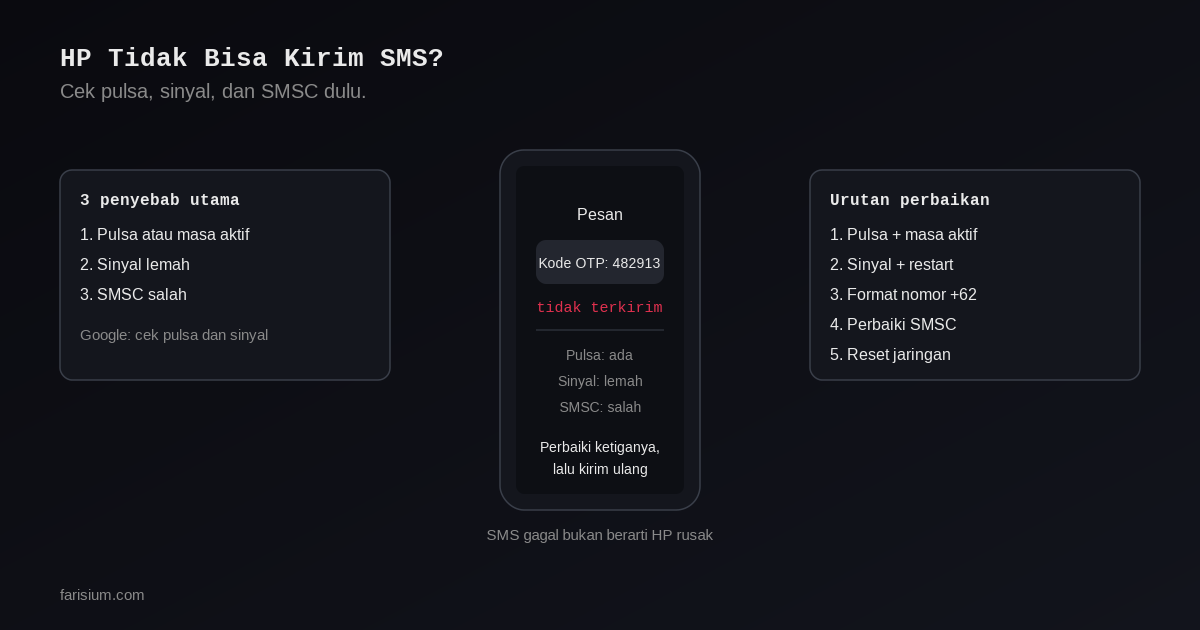
First, Find Where Texting Fails
The right fix depends on the symptom. A text that fails to every contact points to a different cause than a text that fails to only one person. Look at the list below and find the pattern that matches what you see.
- Texts fail to every number: this usually points to your account or connection, such as no credit, an expired SIM, weak signal, or a wrong SMSC.
- Texts fail to only one number: the problem is usually the number format, a blocked contact, or an issue on the recipient side.
- Texts fail only to short codes such as OTP codes or bank services: short codes use a special route, so a wrong SMSC or a carrier restriction is the likely cause.
- Texts fail after switching from iPhone to Android or the other way around: the number may still be registered to iMessage or RCS on the old phone.
- Messages stay stuck on sending or turn into RCS or iMessage messages that never deliver: the app is trying to use an internet based chat service instead of falling back to SMS.
Quick Checks Before Changing Settings
The first five minutes tell you whether the problem is your account and signal or the phone itself. These checks are simple, but they solve many cases without touching any settings.
- Check your remaining credit using your carrier dial code or app.
- Check the SIM validity period, because an expired card cannot send texts.
- Look at the signal indicator and make sure airplane mode is turned off.
- Restart the phone to clear temporary network and app errors.
- Send a test text to your own number or to another number to confirm the problem is not limited to one recipient.
How to Fix an Android Phone That Cannot Send Texts
According to the troubleshooting page from Google Support ↗, you should keep Google Messages updated, make sure it is set as the default texting app, confirm that your carrier supports SMS, check your credit and signal, and turn airplane mode off. The steps below follow that guidance and add a few checks that matter for Indonesian carriers.
- Update Google Messages in the Play Store so you have the latest fixes.
- Set Google Messages as the default SMS app in Settings, Apps, Default apps, SMS app.
- Enter the recipient number in international format, using +62 for Indonesian numbers.
- Set the correct SMSC in the Messages app under Settings, Text messages, Message center. Common numbers are Telkomsel +6281100000, XL +62818445009, and Axis +628315000032. For other carriers, ask the carrier support line.
- Change the network type from 4G Only to automatic 4G/3G/2G, because a 4G Only setting does not carry SMS on some networks.
- Clear the Messages app cache in Settings, Apps, Messages, Storage, Clear cache. The same steps are explained in the guide on clearing the cache on your phone.
- Check whether the recipient number was blocked by accident in the Messages app block list.
- Re-register the SIM if the carrier asks, using the format ULANG#NIK#NOMOR KK# sent to 4444.
- If all else fails, reset network settings. This removes saved Wi-Fi networks and Bluetooth pairings, so note them first.
Menu names can differ slightly by phone brand. Samsung, Xiaomi, Oppo, and other manufacturers may place these options under slightly different labels, so use the search bar in Settings if you cannot find a menu.
How to Fix an iPhone That Cannot Send Texts
The official page from Apple Support ↗ recommends checking your connection first. If you see a red exclamation point next to a message, tap it and choose Try Again. If it still fails, tap it again and choose Send as Text Message. If texts still do not send after that, Apple advises contacting your carrier.
- Make sure your phone number is turned on in Settings, Cellular.
- In Settings, Apps, Messages, turn on Send as Text Message so the iPhone falls back to SMS automatically when iMessage is unavailable.
- Turn iMessage off and back on, then check that your number is selected under Send and Receive.
- Confirm that the recipient number is correct and complete.
- Update iOS, because an update can fix sending bugs. If the update itself fails, read the guide on fixing a phone that will not update.
- If you just switched from iPhone to Android, deactivate iMessage for that number so texts from iPhone users reach your new phone.
- If group MMS messages fail, turn on Send as Text Message and confirm that your carrier supports MMS.
- Restart the iPhone after changing these settings.
A green bubble means the message went as SMS or RCS instead of iMessage. Because of this, SMS failures on iPhone often show up as messages that stay green and never deliver. If you see that pattern, focus on credit, signal, and carrier support rather than iMessage settings.
Which Fix Matches Your Symptom
If you are not sure where to start, match your symptom to the first fix below. This saves time compared with trying every step at random.
- Texts fail to every number: start with credit, SIM validity, and signal.
- Texts fail to only one number: check the number format and the blocked list.
- Texts fail only to OTP or short codes: check the SMSC and ask the carrier whether short codes are supported on your plan.
- Texts fail after switching phones: deactivate iMessage or RCS on the old phone.
- Texts fail after an app or system update: update the Messages app and confirm the default SMS app is correct.
Still Failing? Check These Next
If you have done the basic steps and texts still fail, the next goal is to find out whether the fault lies with the SIM card, the network, or the phone hardware.
- Try your SIM in another phone to find out whether the card or the phone is at fault.
- Try another SIM in your phone to see whether a working card can send texts from it.
- Ask the carrier whether there is a network outage in your area.
- Check whether the card has passed its validity period and needs a top-up or re-registration.
- If the card and network are fine but the phone still cannot send texts, take the phone to a repair shop, because the signal module or SIM slot may be faulty.
Conclusion
When a phone cannot send text messages, start with credit, SIM validity, and signal, then move on to the number format, the SMSC, the messaging app, and your network settings. On iPhone, add the iMessage and Send as Text Message checks. If your SIM works normally in another phone, the problem is the phone itself, and it needs repair.
Sources
Want to work faster with the help of artificial intelligence? Try the free AI tools available on Farisium.
Explore Farisium AI Tools