For most people, the fastest free way to convert PDF to Word is to open the PDF in Microsoft Word with File > Open, if Word is already installed. If you do not have Word, upload the PDF to Google Drive, open it with Google Docs, and download it as a .docx file. Both routes cost nothing and take only a few clicks.
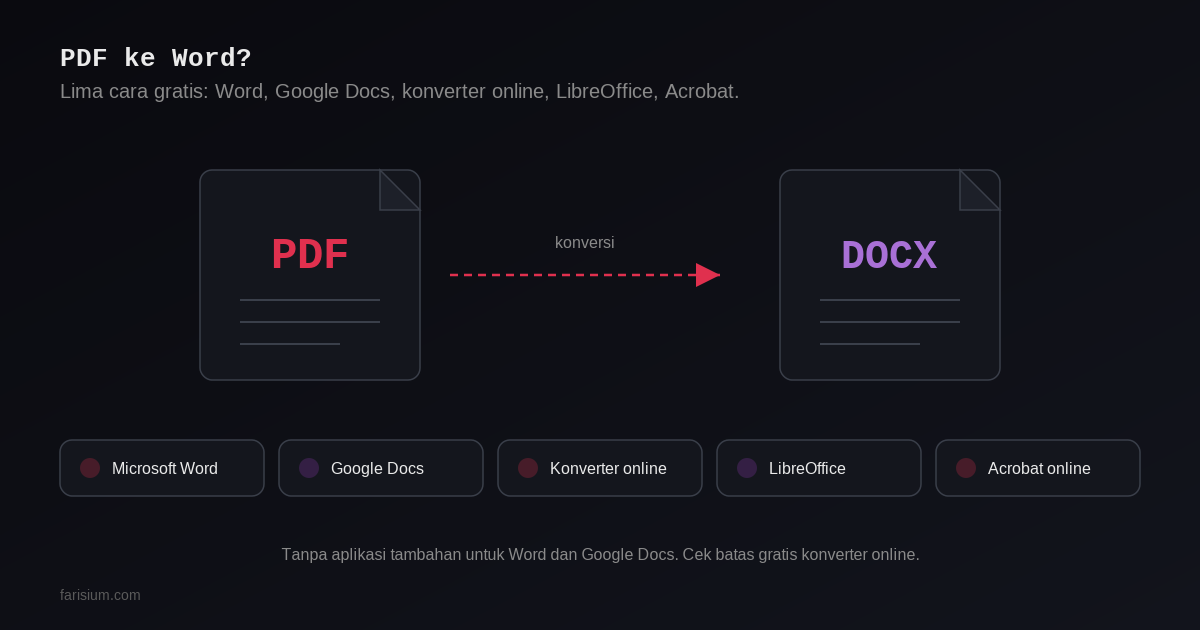
This guide covers five free methods: Microsoft Word, Google Docs, free online converters, LibreOffice, and Adobe Acrobat online. It also explains which method suits which situation, how to handle scanned or locked PDFs, and what to check when the converted file looks messy.
How to convert PDF to Word in Microsoft Word
If you already use Microsoft Word, you do not need any extra software. Word can open a PDF and turn it into an editable document by itself.
- Open Microsoft Word and go to File > Open.
- Pick the PDF file you want to convert.
- Word shows a message saying it will make a copy of the PDF and convert it into a format Word can display. Click OK.
- Edit the document as needed.
- Go to File > Save As and choose Word Document (.docx) as the file type.
According to Microsoft Support ↗, this works best with PDFs that are mostly text. The converted document may not match the original page for page, so lines and pages can break at different locations. For letters, reports, and articles that is usually fine. For brochures or heavily designed forms, expect some cleanup.
How to convert PDF to Word with Google Docs
No Word on your computer? Google Docs is the next best free option. You upload the PDF to Google Drive and open it with Google Docs. Because Google Docs reads PDFs with text recognition (OCR), this method also works for scanned PDFs that are really just images of pages. You need a Google account and an internet connection.
- Go to drive.google.com and sign in.
- Click New > File upload and choose your PDF.
- Right-click the uploaded file and choose Open with > Google Docs.
- Read through the text and fix anything the OCR misread.
To get a Word file, go to File > Download > Microsoft Word (.docx) inside Google Docs. Google lists .pdf among the file types it can convert with OCR, as explained in Google Docs Help ↗. Give the downloaded file a quick review before you share it.
How to convert PDF to Word online for free
If you need a quick conversion and do not want to install anything, free online converters such as Smallpdf and iLovePDF work right in the browser. You upload the PDF, start the conversion, and download the .docx file. Smallpdf needs no registration for basic use, but free users can convert up to two documents per day. One important warning: do not upload sensitive documents such as ID cards, contracts, or financial papers to a free online converter. For private files, use Word or LibreOffice, which keep everything on your own computer.
- Open the PDF to Word page on Smallpdf or iLovePDF.
- Upload or drag in your PDF.
- Start the conversion.
- Download the .docx file when it is ready.
How to convert PDF to Word with LibreOffice
LibreOffice is a free, open source office suite that works offline, so it is a solid choice if you do not have Word and prefer not to upload files anywhere. The route is a bit unusual. The PDF opens in LibreOffice Draw, not Writer, so you export it first and then save it as a Word file from Writer.
- Open the PDF in LibreOffice Draw.
- Go to File > Export As > Export as ODT and save the file.
- Open the new .odt file in LibreOffice Writer.
- Go to File > Save As and choose Microsoft Word (.docx).
This is the longest route of the five. It is worth it mainly if LibreOffice is already installed on your computer. If not, Word or Google Docs will get you there faster.
How to convert PDF to Word with Adobe Acrobat online
Adobe, the company that created the PDF format, offers an official PDF to Word converter through Adobe Acrobat online. You upload the PDF, let it convert, and download the .docx file. The free tier has usage limits, so it fits occasional conversions better than regular heavy use.
Which method should you use
Each method has a situation where it shines. Use this quick guide to match your file to the right tool.
- Word is installed and the PDF is mostly text: open it in Microsoft Word with File > Open.
- No Word and you need a free option: use Google Docs through Google Drive.
- Scanned PDF: use Google Docs, which reads PDFs with OCR, or an online converter that offers OCR.
- Many pages with a complex layout: try two methods, such as Word and Adobe Acrobat online, and keep the cleanest result.
- Sensitive document: stay offline with Microsoft Word or LibreOffice.
Converted PDF looks messy? Check these first
Conversion is rarely perfect, especially with designed documents. Before you start over, check these common problems.
- Layout shifts: lines and pages may break in different places than in the original. Accept the reflow and tidy up in Word by adjusting margins, spacing, and page breaks.
- Garbled or unselectable text: this usually means the PDF is a scan with no text layer. Use Google Docs OCR or an online converter with OCR instead.
- Missing fonts or broken tables: swap unusual fonts for a common one in Word, and rebuild tables that came through as loose text.
- File too large for an online converter: split the PDF into smaller parts, or convert it in Word, which runs on your own computer.
- Document opens but cannot be edited: check whether the PDF is password protected or made of scanned pages. A converter cannot open a locked file without the password, so unlock it first, and use OCR for scans.
Conclusion
For most people the answer is simple: open the PDF in Microsoft Word if you have it, or use Google Docs if you do not. Choose Google Docs for scanned PDFs, LibreOffice for a free offline route, and Smallpdf, iLovePDF, or Adobe Acrobat online for quick one-off jobs with non-sensitive files. Whichever method you pick, review the result before you share it.
Sources
Link Terkait
support.microsoft.com/en-gb/word/training/edit-a-pdf↗support.google.com/docs/answer/6055139↗Explore Farisium AI tools to help you work faster
Explore Farisium AI Tools